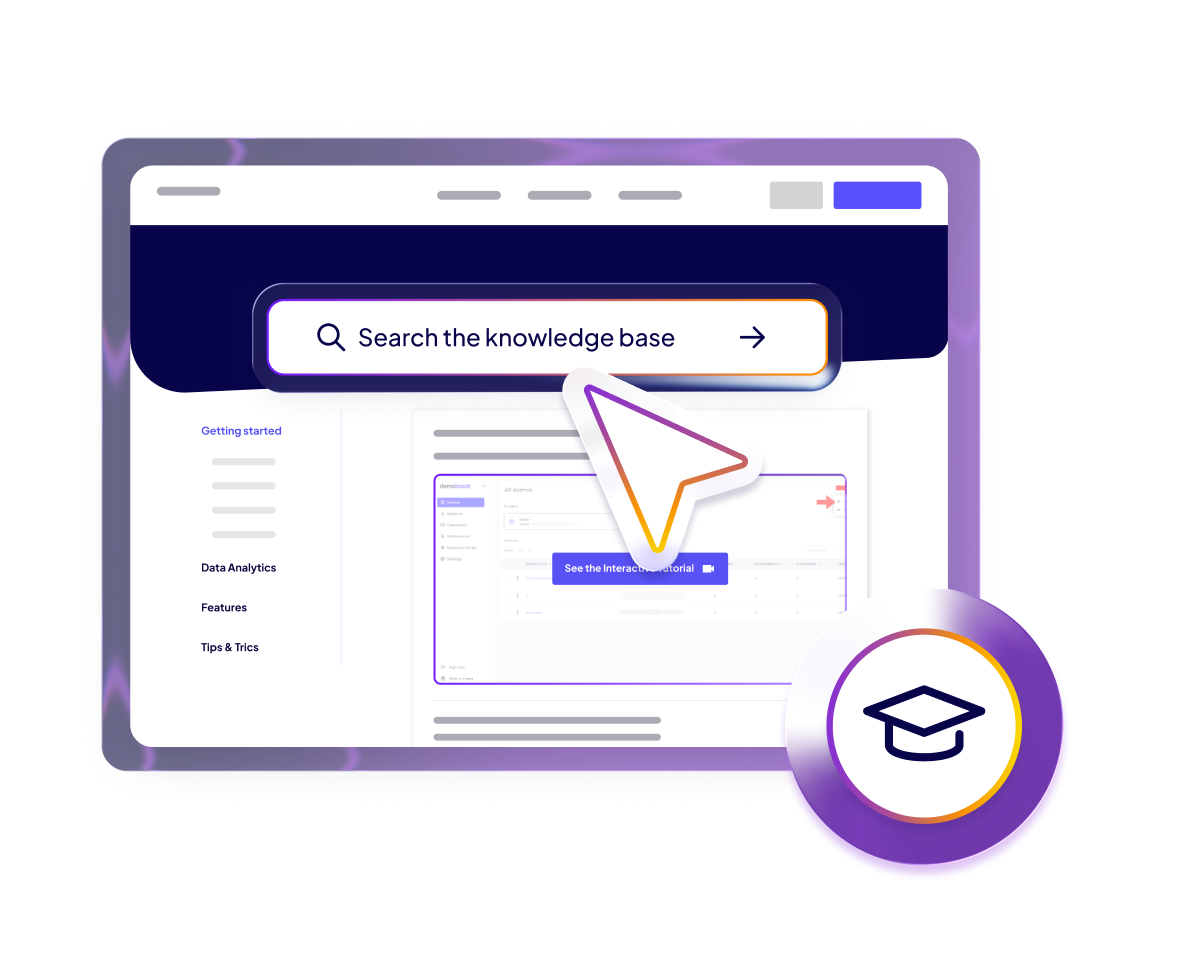





1. Embed Demos Where Users Look for Help
Place interactive tutorials at the point of need—wherever customers naturally seek assistance.
Strategic placement:
In-product UI:
- Add "Watch demo" buttons next to complex features
- Trigger contextual demos when users access advanced capabilities for the first time
- Include in empty states (e.g., "Create your first dashboard—see how")
Knowledge base / Help center:
- Replace text-only articles with interactive walkthroughs
- Embed demos directly within documentation pages
- Create demo-first help articles with text as supplementary context
Support bot responses:
- Attach relevant demos to chatbot answers
- Let users "see how it's done" instead of just reading steps
Onboarding libraries:
- Build demo-based learning paths for new users
- Organize by role, use case, or proficiency level
Demoboost Implementation:
Use embed links for knowledge base articles | Enable in-product embedding with contextual triggers | Connect demos to chatbot workflows | Build demo playlists for onboarding paths
2. Structure for Task Completion
Build demos that guide users to accomplish specific tasks, not just understand concepts.
Recommended structure:
End Goal First:
- Start with what the user will achieve (e.g., "Create a monthly report," "Set up automated alerts")
- Frame in terms of their objective, not product features
Step-by-Step Guidance:
- Show each action clearly without shortcuts or skipped steps
- Use Guides to highlight clickable elements and explain what to do
Visual Focus:
- Highlight key UI elements that users should interact with
- Minimize distractions—blur or hide irrelevant areas when helpful
Text-Based Narrative:
- Use written guides rather than video for easier updates and maintenance
- Keep guide text concise (15-25 words per guide)
Success Confirmation:
- End with a screen showing the completed outcome
- Reinforce what they've accomplished
Demoboost Implementation:
Build Tours with clear step-by-step flows | Use Guides to direct attention | Apply visual hierarchy (highlights, blurs) | Keep narratives text-based for easy updates | Add custom ending screens confirming success
3. Organize by User Intent
Structure knowledge base demos around what users are trying to accomplish, not your product hierarchy.
Organization approaches:
By task:
- "How to create a report"
- "How to invite team members"
- "How to export data"
By role:
- Admin tasks (configuration, user management)
- Manager tasks (dashboards, reporting)
- End user tasks (daily workflows, common actions)
By use case:
- Onboarding workflows
- Advanced features
- Troubleshooting common issues
By proficiency:
- Getting started (basics)
- Intermediate (optimization)
- Advanced (customization, integrations)
Demoboost Implementation:
Create demo libraries organized by task, role, or use case | Use Choose Your Own Journey for self-guided navigation | Build Playlists with logical learning progressions
4. Keep Demos Current
Synchronize demo updates with product releases to prevent confusion and outdated guidance.
Update triggers:
- UI changes (even minor ones can confuse users following outdated demos)
- Feature enhancements or new capabilities
- Workflow changes or process improvements
- Terminology or branding updates
Maintenance strategy:
- Assign demo ownership to Product or Enablement teams
- Include demo updates in release checklists
- Monitor support tickets for signs of outdated content
- Track demo engagement drop-offs as potential indicators of misalignment
Demoboost Implementation:
Centralize demo management for easier updates |Track drop-off points that may indicate outdated content | Version control demo updates
5. Best Practices
Keep Tutorials Task-Focused
One demo = one task. Don't combine multiple unrelated workflows.
Match UI Language Exactly
Use the same terminology, labels, and phrasing as your product interface.
Avoid Long Feature Tours
Focus on accomplishing specific goals, not comprehensive product walkthroughs.
Make Demos Searchable
Optimize titles and descriptions for how users actually search for help.
Reuse Across Touchpoints
The same demo can serve onboarding, support, training, and knowledge base contexts.
Measure Deflection
Track whether demo viewers submit fewer support tickets than non-viewers.
6. Role in the Buyer Journey
At the Adoption stage, knowledge base demos:
- Transform documentation from passive reading to active doing
- Reduce support dependency by enabling self-sufficient problem-solving
- Accelerate proficiency by making learning faster and more intuitive
- Scale customer education without increasing headcount or training sessions
Knowledge base demos shift support from "let me help you" to "here's how to do it yourself"—empowering customers while reducing team burden.
7. Success Metrics
Self-Service Effectiveness:
- Knowledge base demo view rate
- Demo completion rate 40–60%+ for short, focused tutorials, often higher in top quartile demos.
- Support ticket deflection rate (viewers vs. non-viewers)
Learning Signals:
- Repeat engagement: Users who revisit how‑to demos within a few days often indicate higher intent and reliance on self‑service.
- Relative engagement depth: Demos that quickly demonstrate value in the first few steps (3–5) outperform deep, unfocused content.
Support Impact:
- Support ticket volume trends after demo deployment
- Average resolution time (with demo links vs. without)
- Customer satisfaction scores for self-serve vs. assisted support
Demoboost Analytics helps to track knowledge base demo engagement, task completion patterns, and correlation between demo usage and support ticket reduction.
8. Common Pitfalls to Avoid
- Creating demos that are too long – Keep task-focused tutorials under 3 minutes
- Using outdated product screenshots – Update immediately when UI changes
- Making demos hard to find – Place at point of need, not buried in help centers
- Combining too many tasks in one demo – One demo = one clear objective
- Not measuring impact – Track whether demos actually reduce support burden
- Using video when text works better – Text-based guides are easier to maintain