
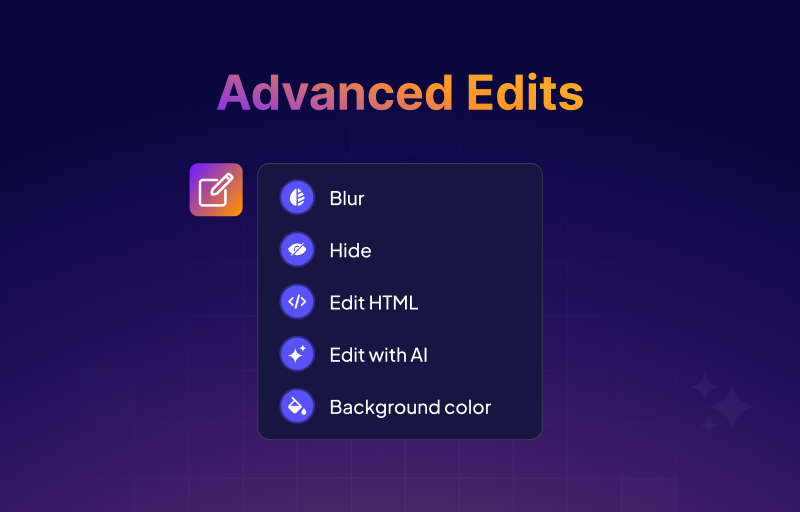
The pursuit of a flawless demo requires more than just capturing screens; it demands the power to perfect and customize every visible element. We have engineered a new era of editing capabilities with Advanced Editing Options, a toolkit designed to give you total control over design, structure, and execution.
This release empowers the creator: solving visual problems with intelligence, executing complex changes with expertise, and ensuring uncompromised quality in every presentation.
Refine Your Focus: The Power of Blur
Blurring is a strategic tool for directing the viewer’s attention and refining your content’s presentation. It ensures that every second spent viewing your demo is spent absorbing the right information.
This capability grants immediate visual command over any element on the screen. By integrating this feature directly into the editor, you simply select the element and click Blur to create a deliberate visual haze. This ensures that the viewer's eye is always drawn to the most critical information, eliminating visual noise. For practical use, it allows for the swift obscuration of sensitive or private details, maintaining professionalism and security effortlessly.
Imagine you are presenting a new sales dashboard, but the messy test data in the lower right corner is distracting. Instead of recapturing the screen, you Blur the area instantly. The focus now snaps entirely to your beautiful new charts. For internal demos, if a live environment shows a customer's real name and ID, using Blur is your immediate, professional solution, guaranteeing privacy compliance with a quick action.
The Simplicity of Hide:
A flawless demo is one where every element on screen serves a purpose. The Hide feature is the ultimate tool for achieving visual cleanliness and maximizing the impact of limited screen space.
Asserting Control Over Clutter
Unnecessary navigation bars, irrelevant icons, or system notifications can compromise your narrative. Using Hide, you can instantly remove any selected element from the screen without affecting the underlying functionality. This is the path to visual refinement.
You are creating a quick product tour, and the persistent "Upgrade Your Plan" banner from your test environment keeps showing up. How annoying is that? Now, you can Hide the banner, and the screen instantly becomes clean and professional. Similarly, if a demo requires users to ignore a sidebar for a few steps, you Hide the sidebar temporarily. This directs the viewer's focus precisely where you intend, ensuring they follow the exact narrative path you have defined.
Control Your Aesthetic: Change Background Color
The environment of your demo must seamlessly reinforce your strategic narrative. The color of a captured element should never clash with your brand or your desired aesthetic.
Design Consistency
This tool grants you immediate aesthetic control. By selecting an element and choosing Change background, you can apply any color you choose. This feature allows you to tailor the visuals to your audience’s expectations.
Imagine your client's primary brand color is bold emerald green, but the call-to-action button in your demo is standard blue. Without complex code edits, you use Change background to switch the button's background to the exact emerald green, making the demo feel instantly bespoke. Or, you might use it to make a key information box pop against a darker interface, guiding the viewer with deliberate visual contrast that reinforces your main point.
Edit with AI
Edit with AI is the defining feature for creative freedom, allowing you to execute complex visual and behavioral changes using natural language prompts, turning hours of manual work into a single command.
Intelligent Execution of Complex Tasks
This is creative freedom powered by machine intelligence. You select an element, provide a prompt (e.g., "Make this chart pulse gently"), and just like that, the AI executes your vision.
You can use the AI to simulate complex interactions, such as instructing it to slide the price bar slider from $500 to $1,500 over two seconds, dramatically animating complex inputs without cumbersome capture steps. You can also achieve immediate visual alignment, perhaps by telling the AI to change the chart’s color palette to monochrome blue and make the border slightly rounded, effortlessly aligning visuals with your brand’s aesthetic wisdom. This feature is the ultimate tool for rapid prototyping and expressive editing, built for speed and precision.
Edit HTML: Precision Code Expertise
For the advanced demo builder who demands absolute control and structural fidelity, Edit HTML is the ultimate key to deep customization.
This feature empowers you to go beyond surface-level edits. Selecting an element and choosing Edit HTML opens a code modal, containing the element’s raw structure. This is for the creator who needs surgical precision, allowing you to directly modify tags, attributes, and CSS styles.