If this editor looks unfamiliar, you're likely using the previous version.
Access the right documentation by clicking on the button.
In the fast-paced world of lead management, speed and automation are key. Integrating lead forms with webhooks allows you to instantly bridge the gap between your interactive demos and your favorite CRM, email marketing tool, or internal communication channels.
By setting up a webhook, you can ensure that every lead captured during a demo journey is automatically sent to Zapier and routed to the right destination in real-time. This guide provides a comprehensive walkthrough of how to configure your webhook URL and map your Demoboost lead data to streamline your sales and marketing workflows.
Step-by-Step Configuration
Follow these steps to connect your Demoboost account to Zapier and start automating your lead flow:
Step 1:
Access your Zapier account. If you don’t have one yet, you will need to create a profile to begin the integration process.
Step 2:
Currently, the Demoboost Zapier integration is in an "Invite Only" phase. Use the following link to add Demoboost as an available trigger in your account:
Step 3:
Once the invitation is accepted, click the "Create Zap" button in your Zapier dashboard to start the automation workflow.
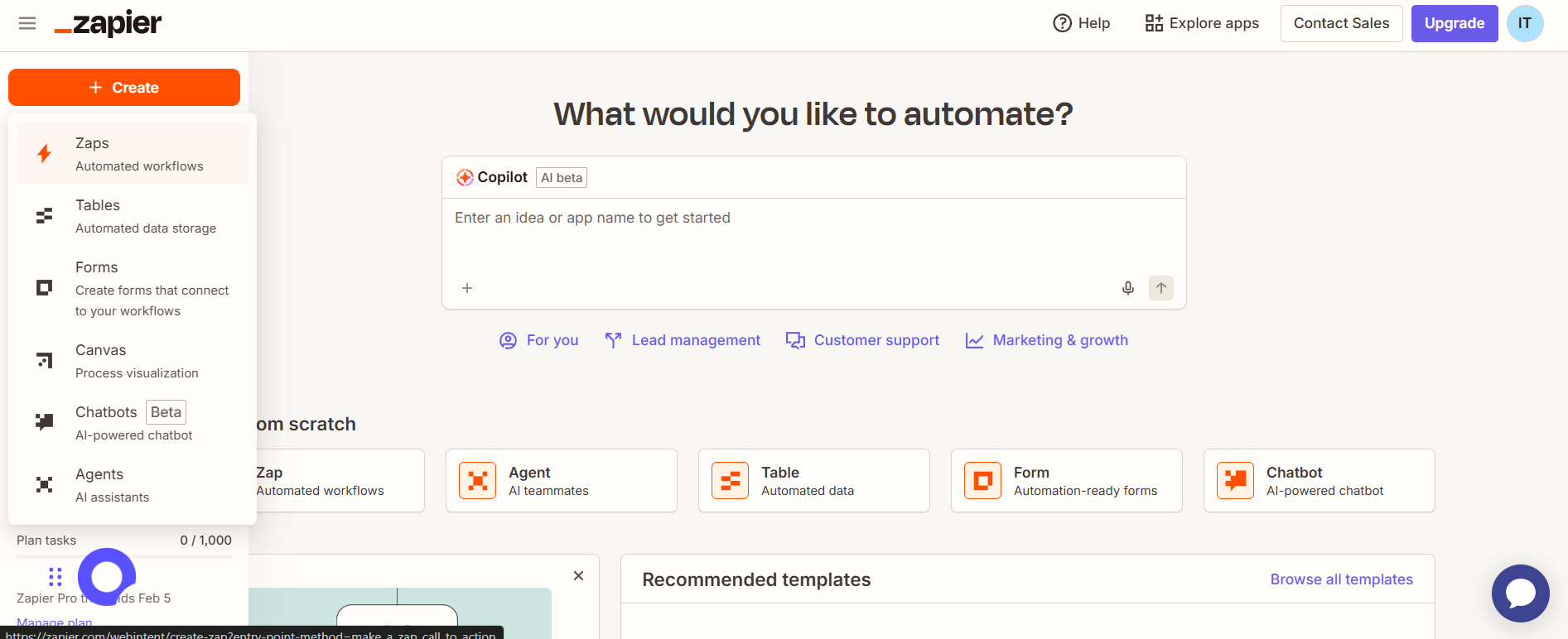
Step 4:
In the App search bar, find and select Demoboost (1.0.0) as a trigger. Because you used the invite link in Step 2, it will appear in your list of available apps.
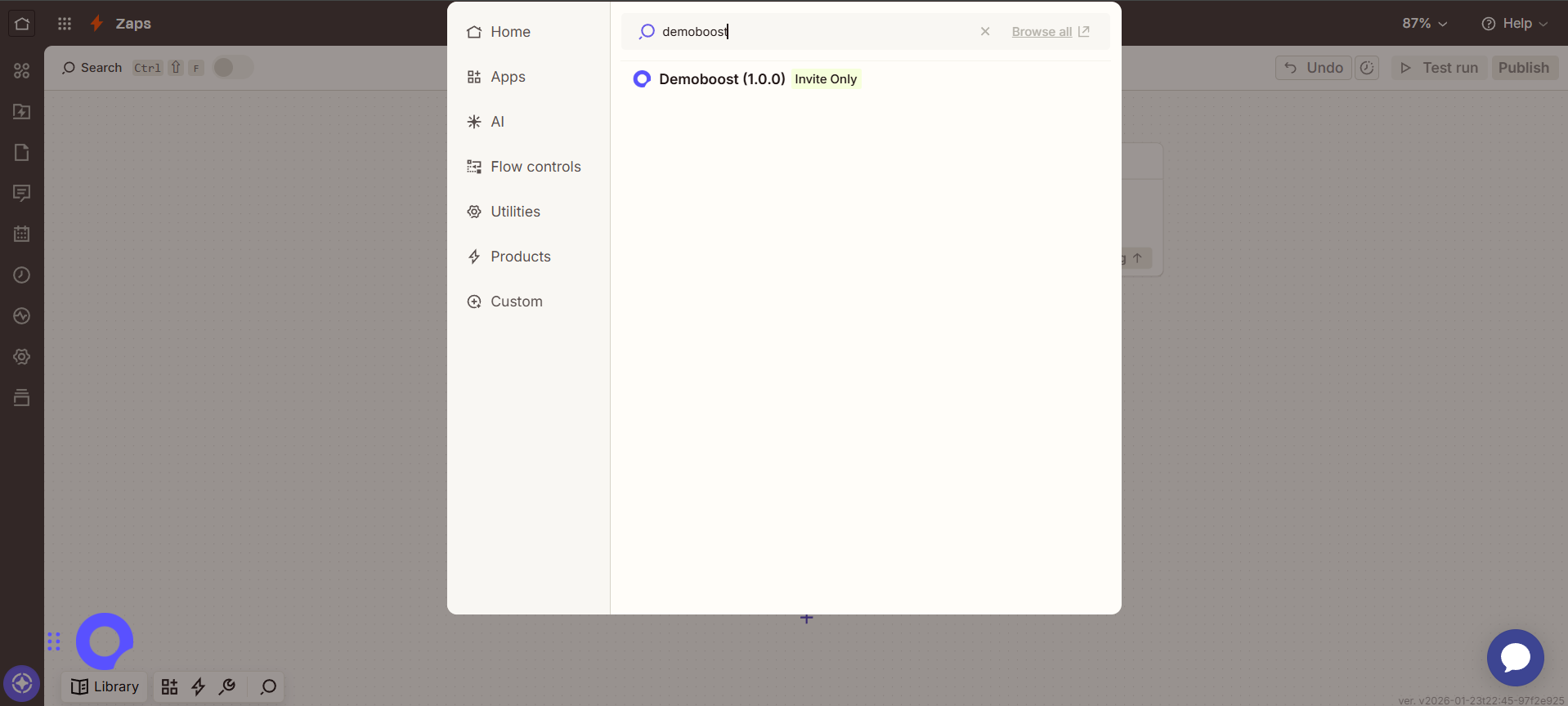
Step 5:
Under the "Trigger Event" dropdown, select Lead Form Submitted. This ensures that the Zap triggers instantly every time a visitor completes a lead form within your demo.
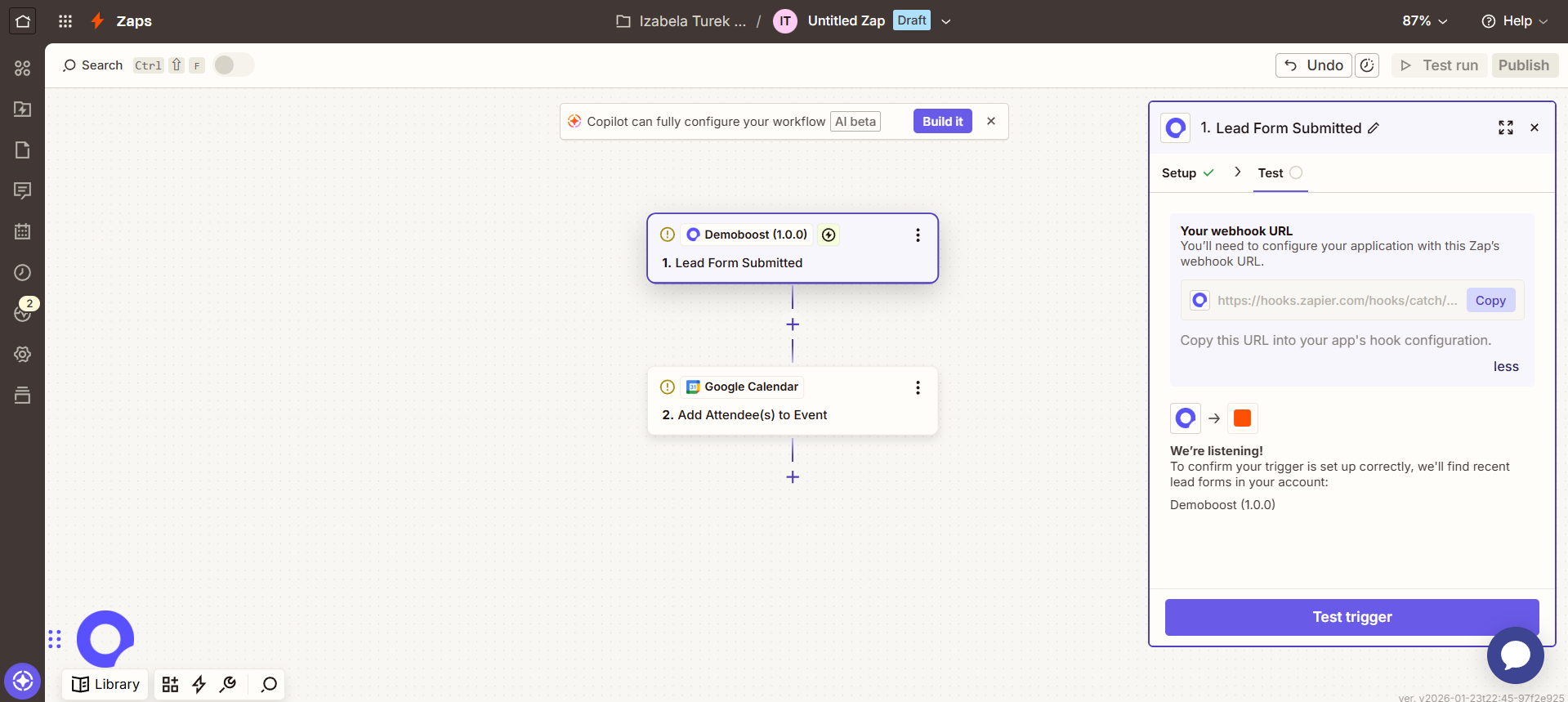
Step 6:
Zapier will generate a unique Webhook URL for this specific Zap. Copy this URL to your clipboard, as you will need it to link Demoboost to this workflow
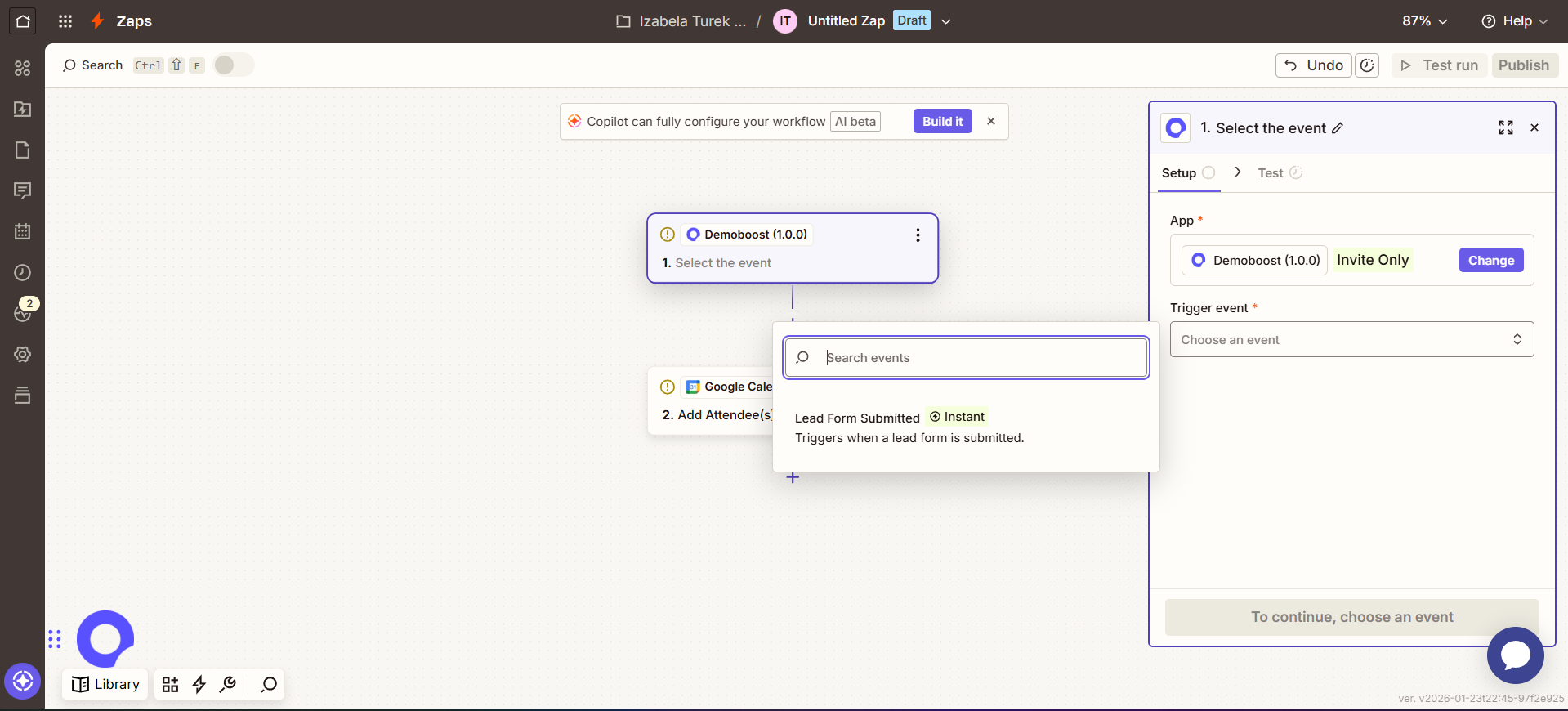
Step 7:
Navigate to your Demoboost dashboard and open the lead form you wish to integrate. Paste the copied URL into the Webhook URL field within your form settings.
For a detailed guide on how to customize your lead forms and find these settings, check out an article - How to Build and Customize Your Lead Form
Step 8:
Choose Your Action in Zapier
The beauty of this integration is its flexibility. Once the Demoboost trigger is active, you can add any action you want. Popular workflows include:
- Sending a ping to a Slack channel to alert sales.
- Adding a new attendee to a Google Calendar event.
- Syncing lead data directly into Salesforce or HubSpot.