If this editor looks unfamiliar, you're likely using the previous version.
Access the right documentation by clicking on the button.
Demoboost's AI Guide Refinement helps you improve the clarity, consistency, and storytelling of your demo Guides in just a few clicks.
Whether you need to shorten lengthy explanations, adjust the tone, or make your messaging more value-focused, you can refine individual Guides or update multiple Guides at once using the Guide Refine Dashboard, with AI-powered suggestions and chat.
In this article, you'll learn how to refine individual Guides, edit multiple Guides in one workspace, and use AI to improve your demo storytelling.
Step 1: Refine Individual Guides with AI
You can use AI Refine directly within any Guide to improve its content without leaving the Screen Editor.
To get started:
- Select the Guide you want to improve.
- Click Edit to open the Guide Editor.
- Click the AI Refine button (✨) to access the available refinement options.
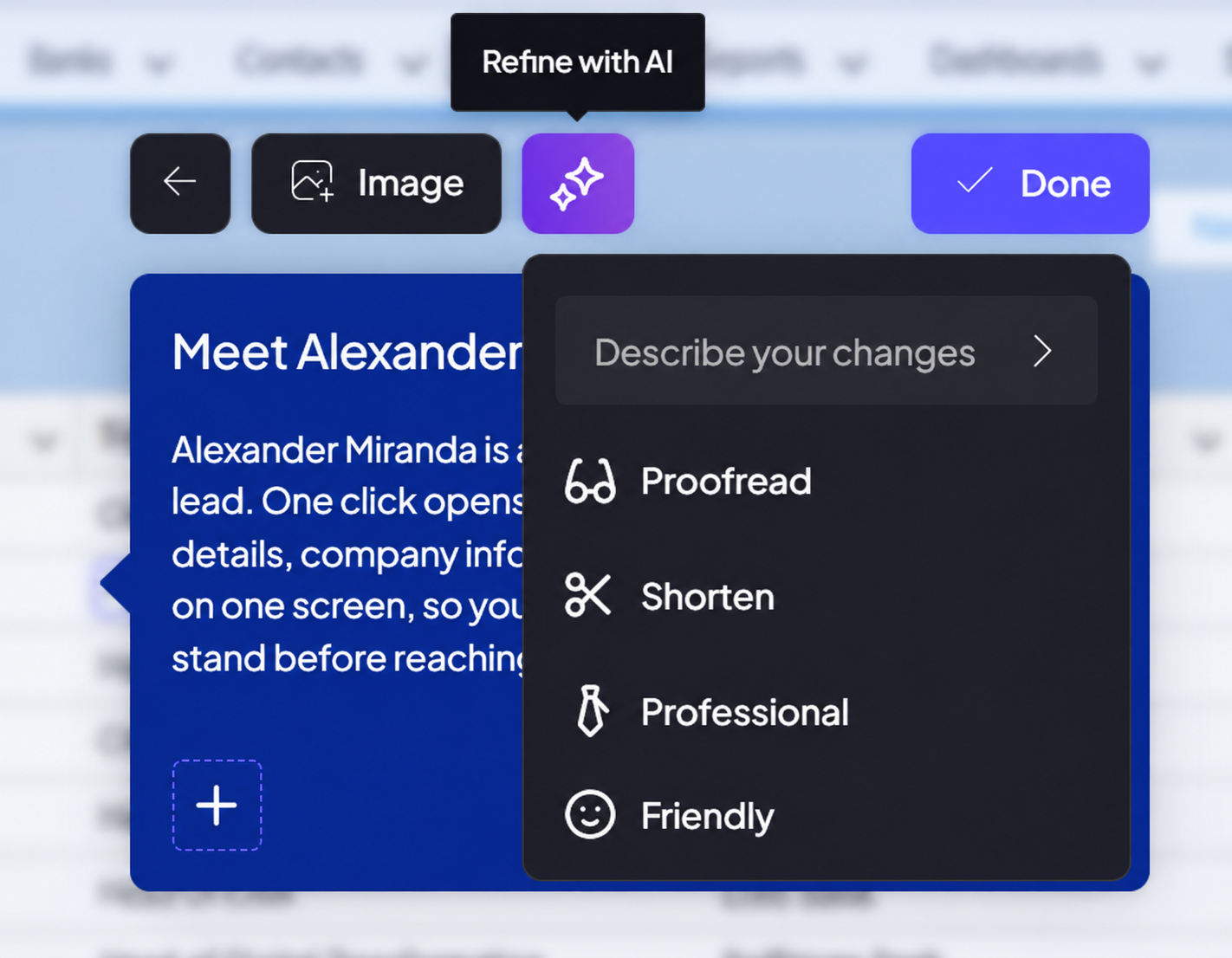
You'll see several predefined options, including:
- Proofread: Correct grammar, spelling, and wording.
- Shorten: Make your Guide more concise while preserving its key message.
- Professional: Adjust the tone to sound more professional.
- Friendly: Make the message more conversational and approachable.
Select one of the predefined options or describe your changes in your own words.
Once AI generates the revised text, review the suggested changes and choose Accept to apply them or Discard to keep your original text.
Click Done when you're happy with the result.
Step 2: Access the Guide Refine Dashboard
If you want to review or update several Guides at once, you don't need to open each Guide individually.
The Guide Refine Dashboard brings all your Guide content into one workspace, making it easier to review the entire demo's messaging and keep your storytelling consistent.
To open it:
- In the Screen Editor, click Guides in the top menu.
- Select Refine Guides from the dropdown.
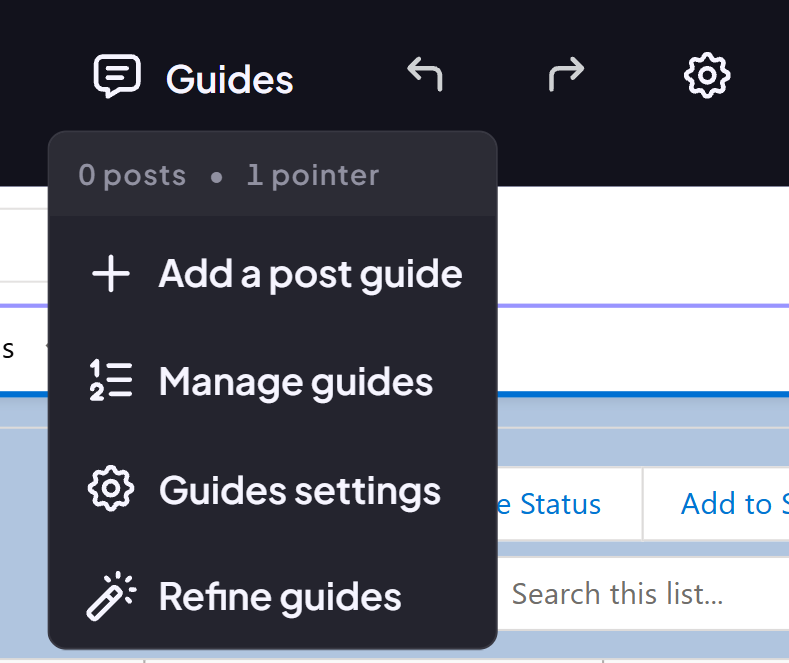
Once the dashboard opens, you can choose which Guides to work with:
- Current Screen: Review and edit Guides associated with the screen you're currently working on.
- All Screens: Display Guides across your entire demo to review and refine the complete story.
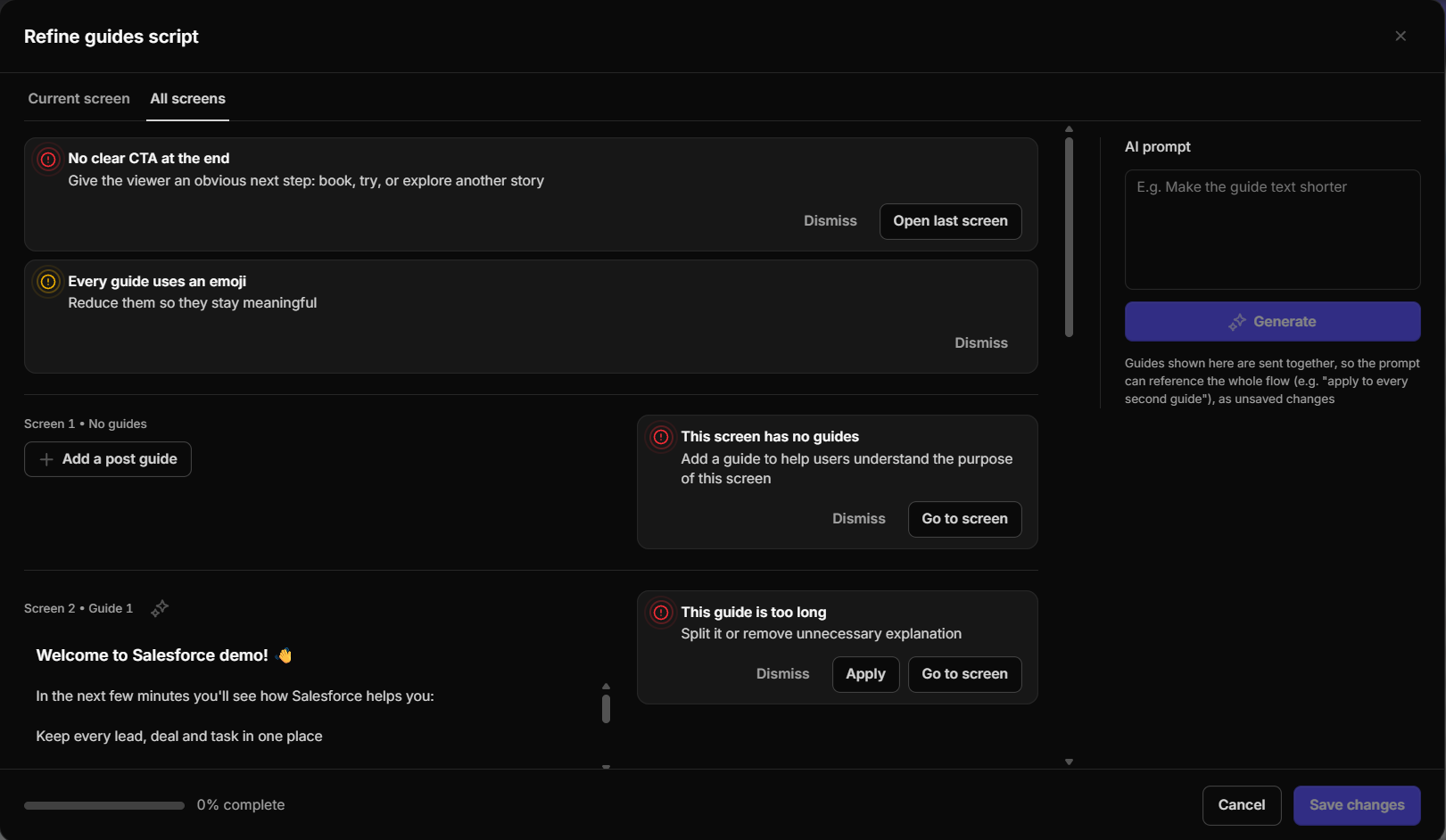
Step 3: Make Manual Edits Across Your Guides
The Guide Refine Dashboard also lets you edit Guide content directly, without switching between individual screens.
To make manual changes:
- Find the Guide you want to update in the dashboard.
- Click inside its text field.
- Edit the content directly, whether you need to fix a typo, update information, or rewrite the message.
Step 4: Improve Storytelling with AI Suggestions
Not sure what to improve? The Guide Refine Dashboard provides AI-powered suggestions based on demo storytelling best practices.
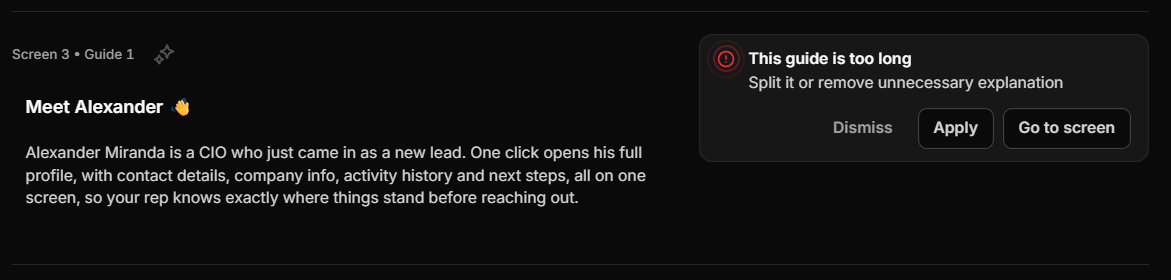
These suggestions help you identify opportunities to make your Guides clearer, shorter, and more focused on the value your product delivers.
You can review the suggestions and decide which changes to keep, ensuring the final messaging remains accurate and aligned with your product.
Step 5: Update Multiple Guides with AI Chat
Want to make broader changes across your demo? Instead of editing Guides one by one, you can use AI Chat to request changes to multiple Guides at once.
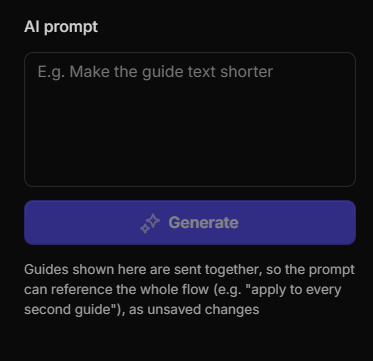
Once AI generates the updates, review the proposed changes and make any additional adjustments if needed.
When you're happy with the results, click Save Changes to apply your updates.