If this editor looks unfamiliar, you're likely using the previous version.
Access the right documentation by clicking on the button.
Would you like your website visitors to experience your product right away, without having to book a demo first? With Demoboost, you can embed an interactive demo directly on your website and let visitors explore your product on their own.
Demoboost generates ready-to-use code that you can embed into your website's source code.
You will need a basic understanding of HTML to implement it.
Step 1:
Open the demo you want to embed on your website.
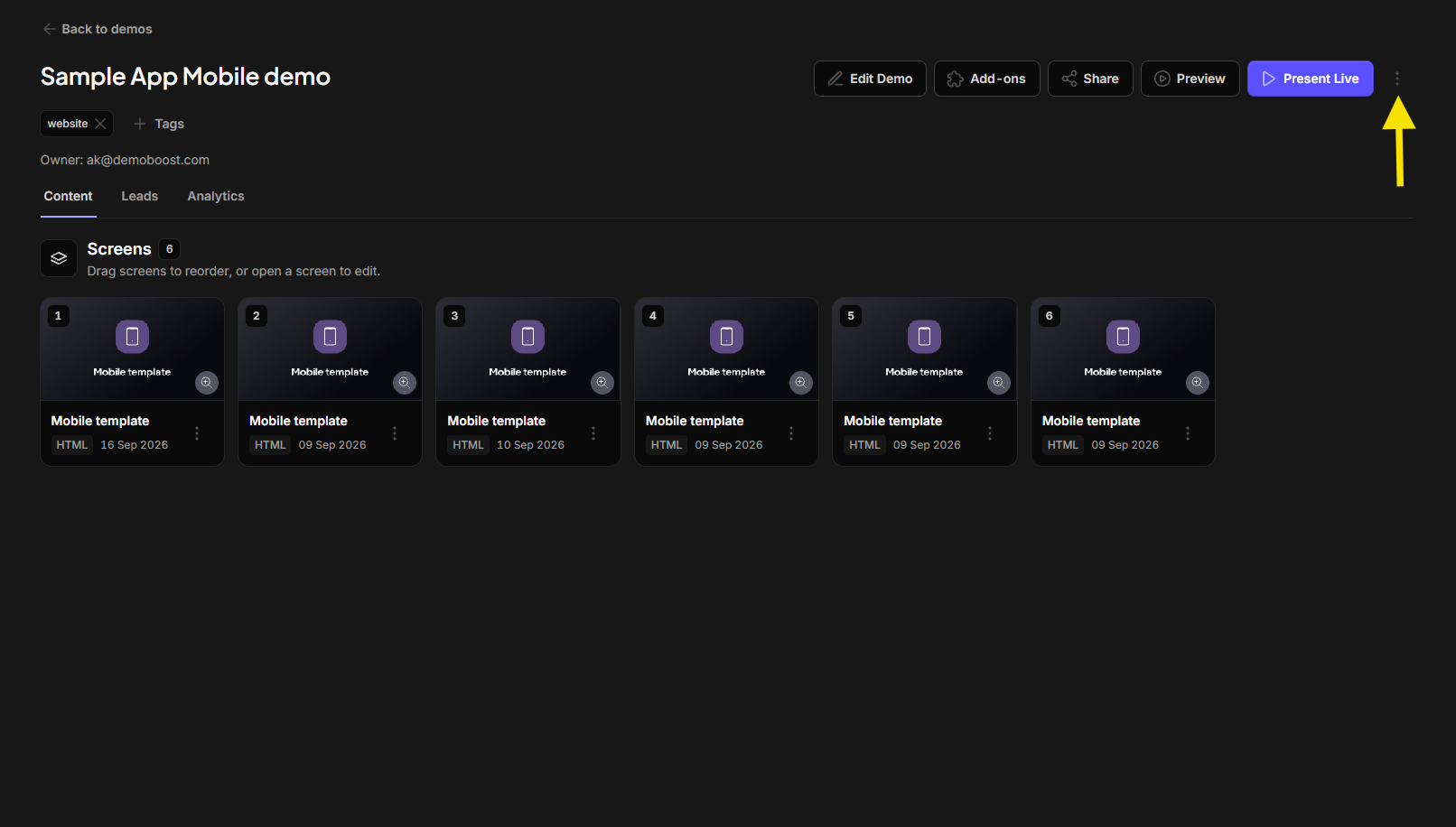
Once you are on the demo's details screen, look for the three dots icon and click it to open the actions menu.
Step 2:
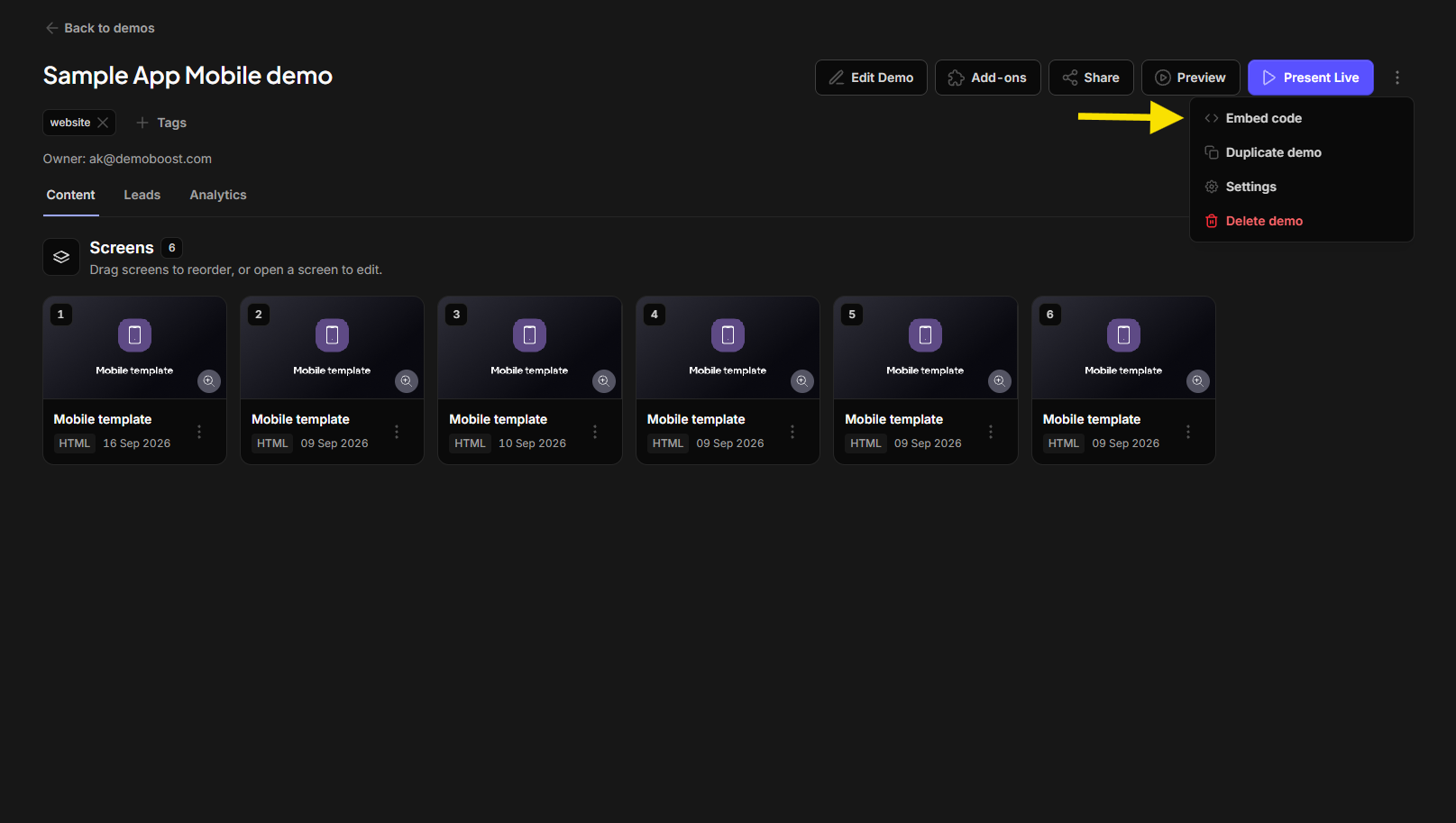
From the dropdown list, choose the Embed code option. A modal will appear containing the iframe code necessary for embedding the demo.
Step 3:
The embed code comes pre-sized, so it works as-is. To tailor it to your layout, you can change these values:
- width="100%" – the demo fills the width of its container. Replace it with a fixed value (e.g. width="800") if you want a set size.
- height="600" – the height in pixels. Increase or decrease it to match your page, or use a percentage (e.g. height="100%") to fill the height of the container the iframe is in.
- style="border: 0" – removes the frame border. Add more CSS here (e.g. ;border-radius: 12px within quotation marks) to style the frame.
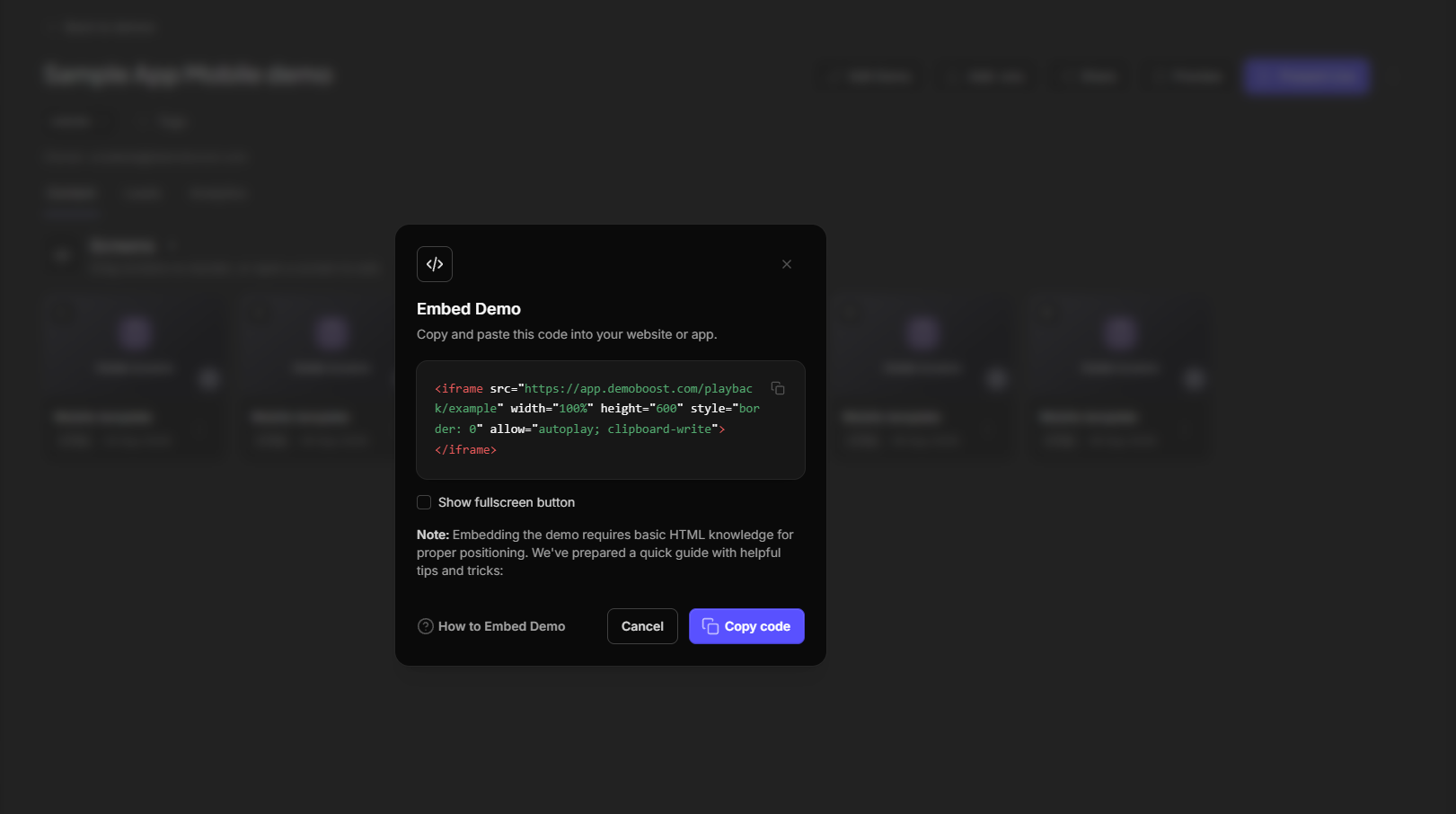
Want viewers to be able to expand the demo? Tick Show fullscreen button before copying the code, and the button will be included in the embedded demo.
Step 4:
Once everything is set, take the embed code and insert it into the HTML of your website where you want the demo to appear.
This can typically be done through your website's content management system or directly in the website's source code.
Note! The embedded demo inherits the settings of your On-Demand demo.
To learn more about configuring sharing settings, check the following articles: Share demo as a link and Playback settings.