If this editor looks unfamiliar, you're likely using the previous version.
Access the right documentation by clicking on the button.
Guides help you create interactive, step-by-step walkthroughs directly within your demos. Whether you're introducing a feature, explaining a workflow, or guiding prospects through key actions, Guides make your demos more engaging and easier to follow.
You can create Post Guides for general messages and Pointer Guides to highlight specific elements, then customize their content, appearance, and navigation to fit your demo's storytelling.
Step 1: Add a Post Guide
Post Guides are ideal for welcoming and closing messages, screen transitions, or sharing general information that isn't tied to a specific element on the screen.
To create one:
- Open your demo in the Screen Editor.
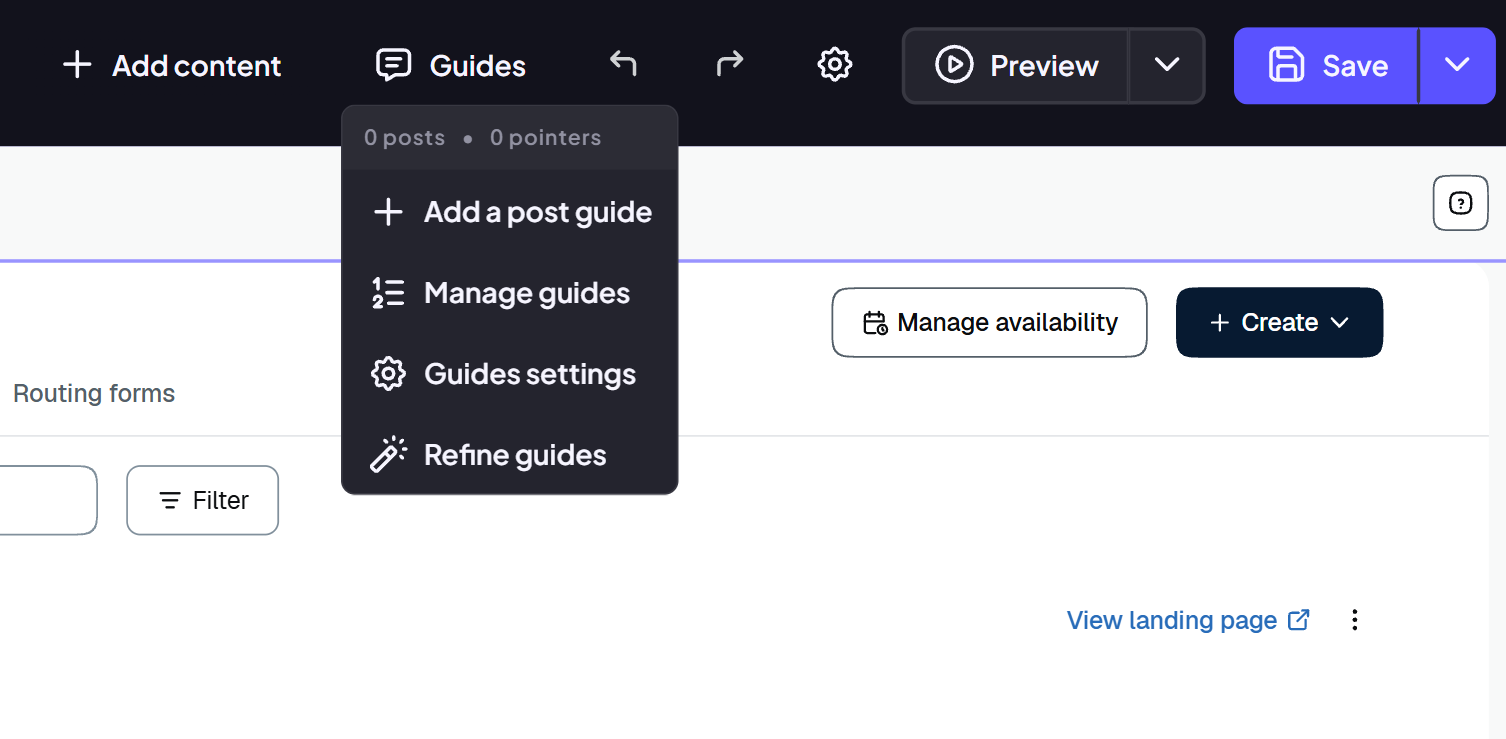
- Click Guides in the top menu.
- Select Add Post Guide.
A Guide will appear on your screen, ready for customization.
Step 2: Add and Format Your Guide Content
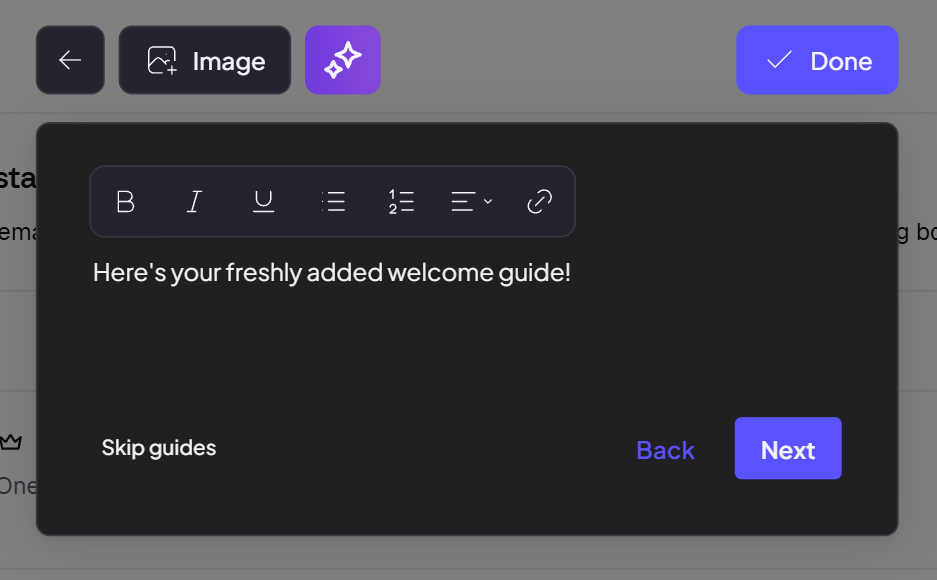
Start by adding a headline and body text to your Guide.
To customize the text:
- Click inside the headline or body text field.
- Enter your content.
- Select the entire text or highlight specific words.
- Use the formatting options that appear to customize your message.
Keep your Guides concise and focus on explaining the value of each feature rather than overwhelming viewers with information.
Refine Your Text with AI
You can also use AI Refine to improve your Guide's content in just a few clicks.
Click AI Refine in the Guide Editor to access predefined refinement options or describe the changes you'd like to make.
For a detailed walkthrough on AI Refine and Global Guide Refine Dashboard, see our How to Refine Your Demo Guides with AI article.
Step 3: Add Images to Your Guide
Beyond text, you can add images to make your Guides more visual and engaging.
To add an image:
- In the Guide Editor, click Image.
- Paste an image URL or upload a file directly from your computer.
- Click Save to add the image to your Guide.
Once the image is added, you can:
- Move it to the top or bottom of the Guide.
- Delete it if you no longer need it.
Images are particularly useful for illustrating a concept, providing visual context, or reinforcing the key message of your Guide.
Step 4: Customize Your Guide Settings
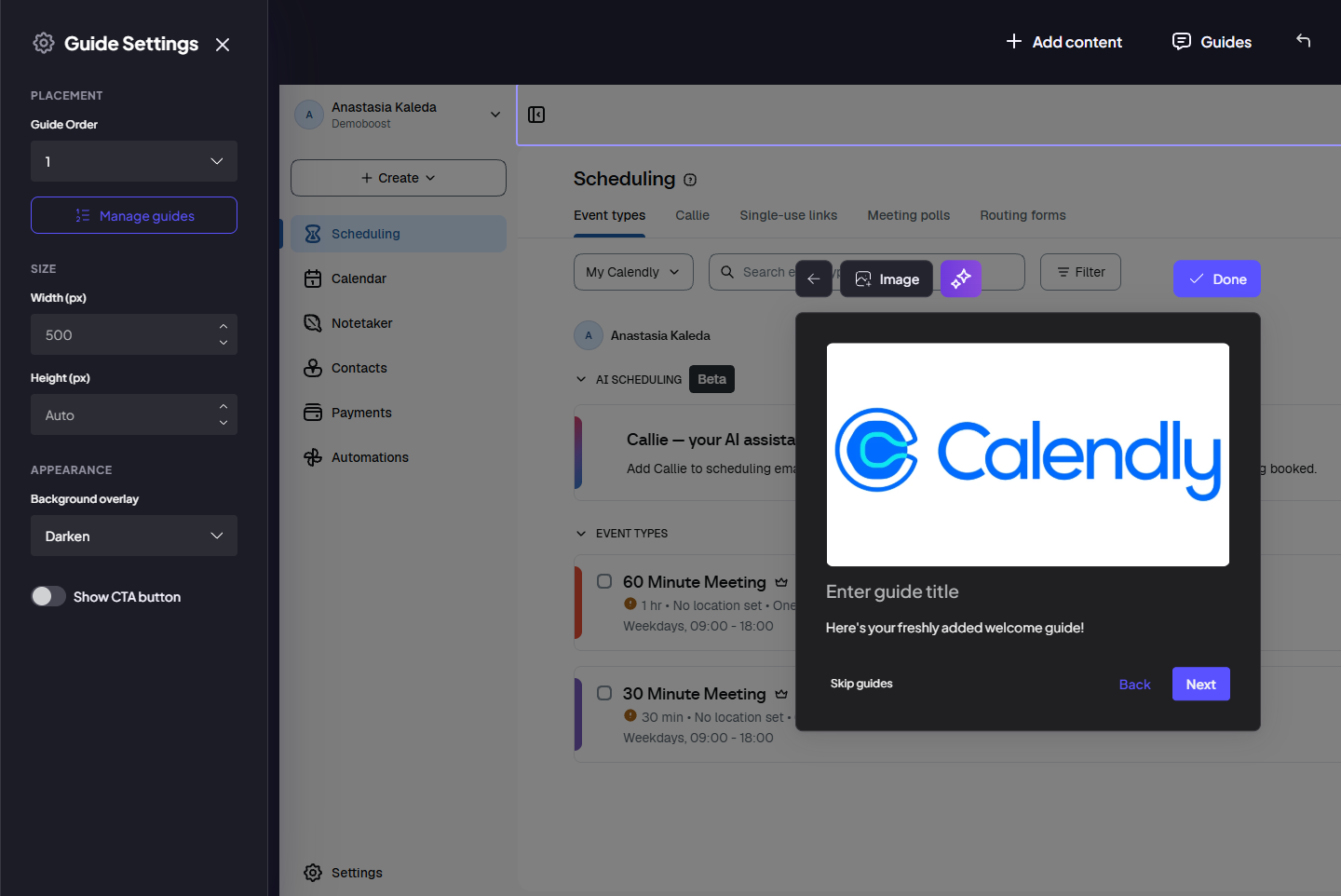
Once your content is ready, check the Guide Settings sidebar to control how your Guide looks and behaves.
Change Guide Order
Use Guide Order to control when your Guide appears among other Guides on the same screen.
Adjust Guide Size
You can change the Guide Size directly in the settings or simply drag the Guide's edges to resize it on the screen.
Adjust the dimensions to make your content easy to read without covering important parts of the product interface.
Blur or Darken the Background
Choose to blur or darken the background when your Guide appears.
This draws viewers' attention to the Guide and the feature you're explaining, helping reduce distractions.
Step 5: Add and Customize Guide Buttons
Guide buttons help viewers navigate your demo or take specific actions.
In addition to the default navigation buttons, you can add a custom Call To Action button to encourage viewers to take the next step.
Add a CTA Button
In the Guide Settings sidebar, find the option to Add a CTA Button.
Once added, you can customize the button's text and specify what happens when a viewer clicks it.
Customize Button Actions
To customize a button in your Guide:
- Hover over the button.
- Click the three dots that appear.
- Choose between Set Target and Hide Button.
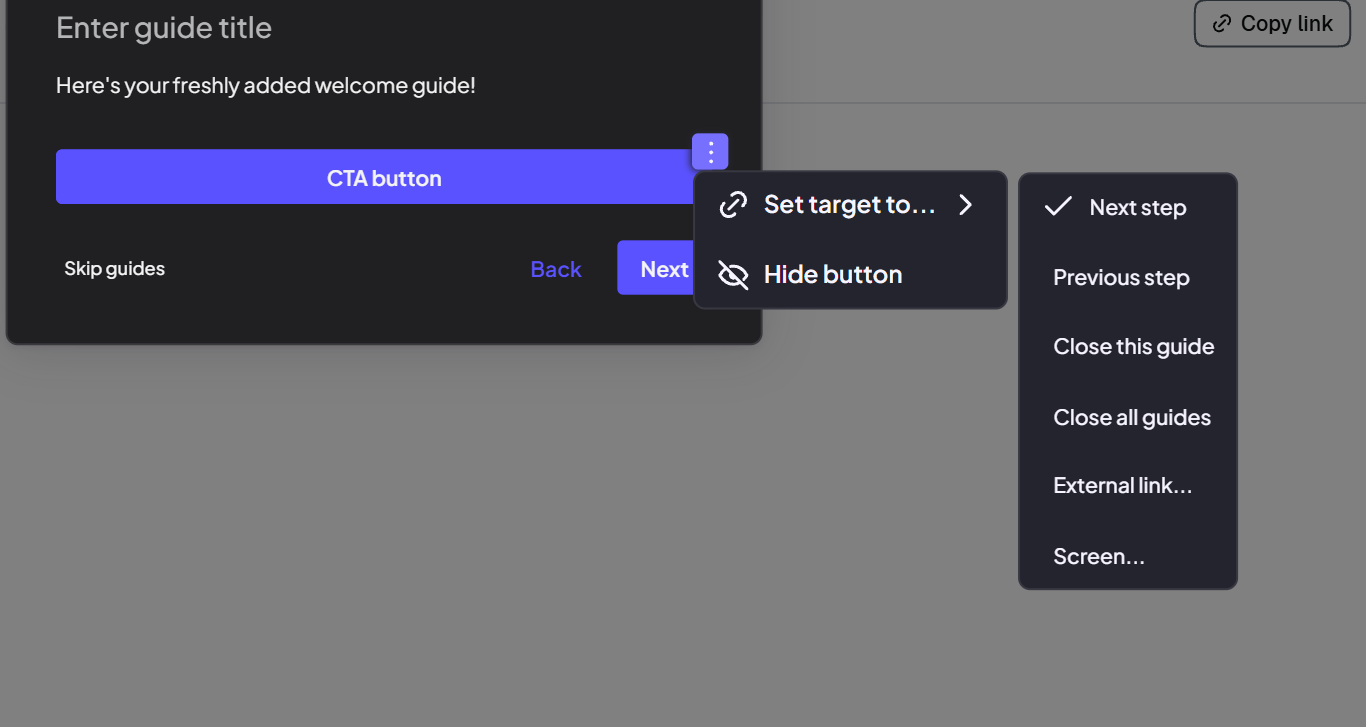
These options apply to both default navigation buttons and additional CTA buttons.
For example, you can hide navigation buttons to prevent viewers from skipping an important Guide or set a target to direct them to an external resource or a specific screen within your demo.
Once you've finished customizing your Guide, click Done to save your changes.
Step 6: Create a Pointer Guide
While Post Guides are useful for general explanations, Pointer Guides are designed to highlight specific elements within your product interface.
They're ideal for pointing out buttons, fields, or features and explaining how they work.
To create a Pointer Guide:
- Open the screen where you'd like to add the Guide.
- Click the element you want to highlight.
- In the popup menu, select Guide.

Your Pointer Guide will appear next to the selected element.
You can customize it using the same editing options available for Post Guides, including text formatting, images, AI Refine, Guide Settings, and buttons.
This allows you to provide contextual guidance exactly where viewers need it.
Step 7: Manage and Reorder Your Guides
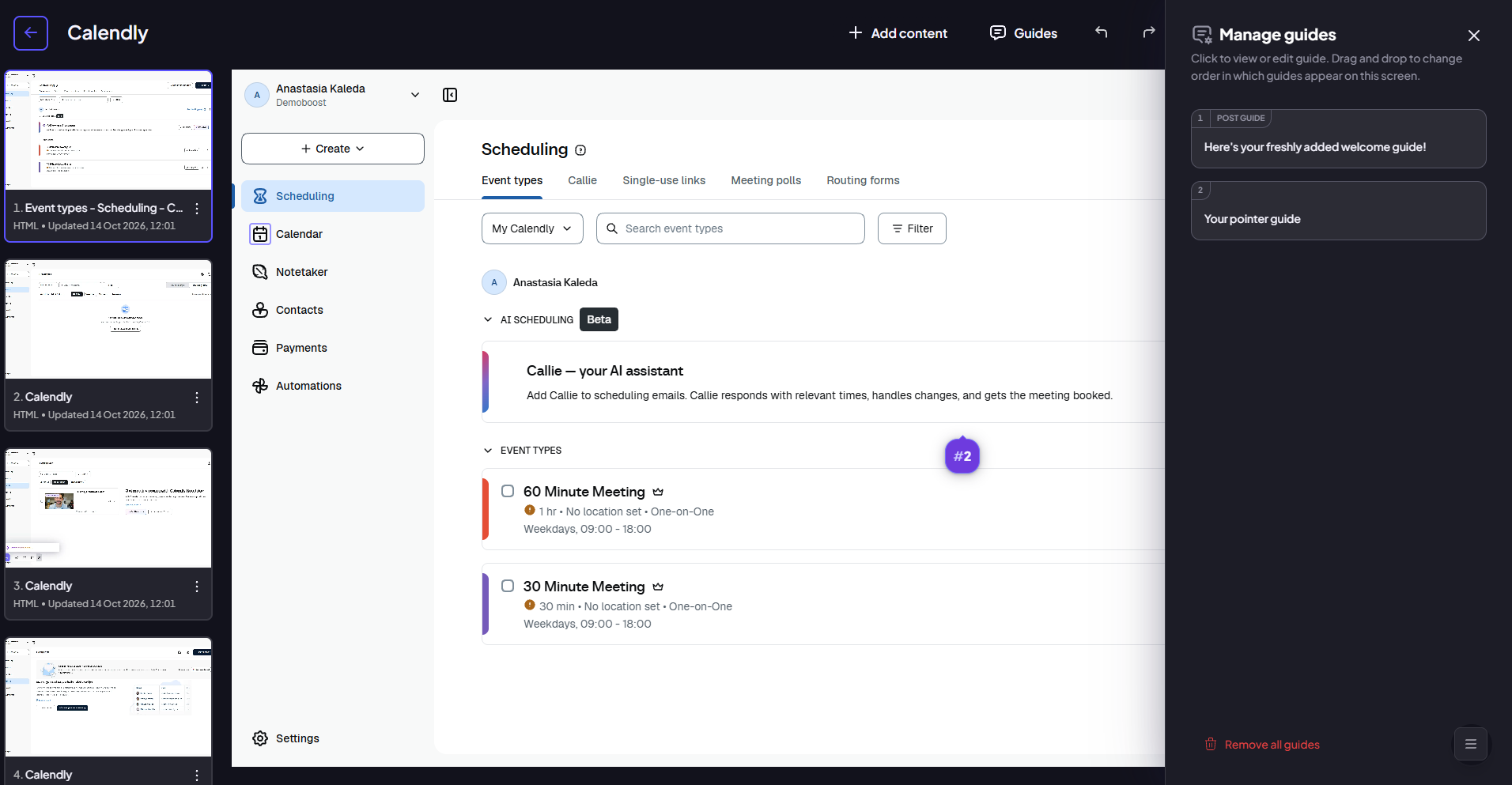
Click Guides in the top menu to open the Manage Guides panel, where you'll find all Guides added to the current screen.
From here, you can:
- Edit existing Guides by clicking on them.
- Reorder Guides by dragging and dropping them into the desired sequence.
- Delete all Guides from the current screen at once.
Step 8: Apply Global Guide Settings
In the Guides dropdown menu, you'll also find Global Guide Settings, where you can configure settings across all Guides in your demo.
These include:
- Button Names: Update the text on Guide navigation buttons.
- Guide Size: Set consistent Guide dimensions.
- Guide Buttons: Remove specific buttons across your demo.
Global Guide Settings help you maintain a consistent viewing experience without editing each Guide individually.
Important! Global Guide Settings can overwrite custom settings you've applied to individual Guide buttons. We recommend applying Global Guide Settings first, then customizing individual buttons as needed.