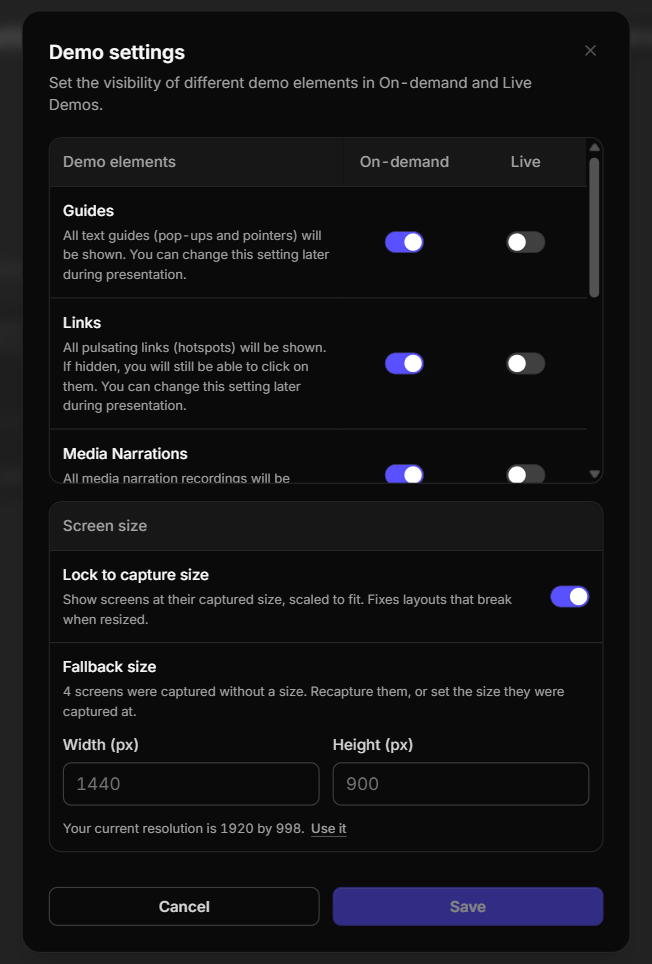
If this editor looks unfamiliar, you're likely using the previous version.
Access the right documentation by clicking on the button.
If your product screens don't display correctly after being captured in Demoboost (i.e. you see empty spaces at the borders of your screen, or vice versa - some parts of the interface are cut off), you can fix the scaling by locking your demo to its original capture resolution.
This ensures that your demo screens maintain their original layout, even when viewed on devices with different screen sizes.
Follow these steps to adjust your demo settings and fix screen scaling.
Step 1: Open Demo Settings
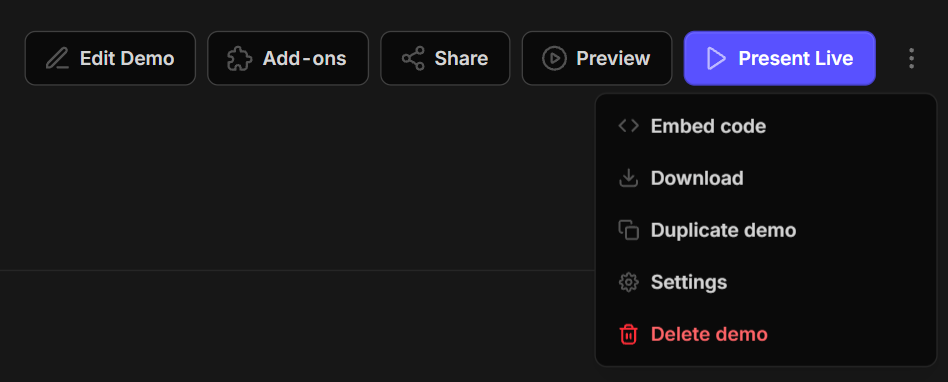
- Navigate to your Demo Library and open the demo you want to adjust.
- In the Demo Details view, click the three-dot icon in the top-right corner.
- Select Settings from the dropdown menu.
This will open the Demo settings window.
Step 2: Enable Lock to Capture Size
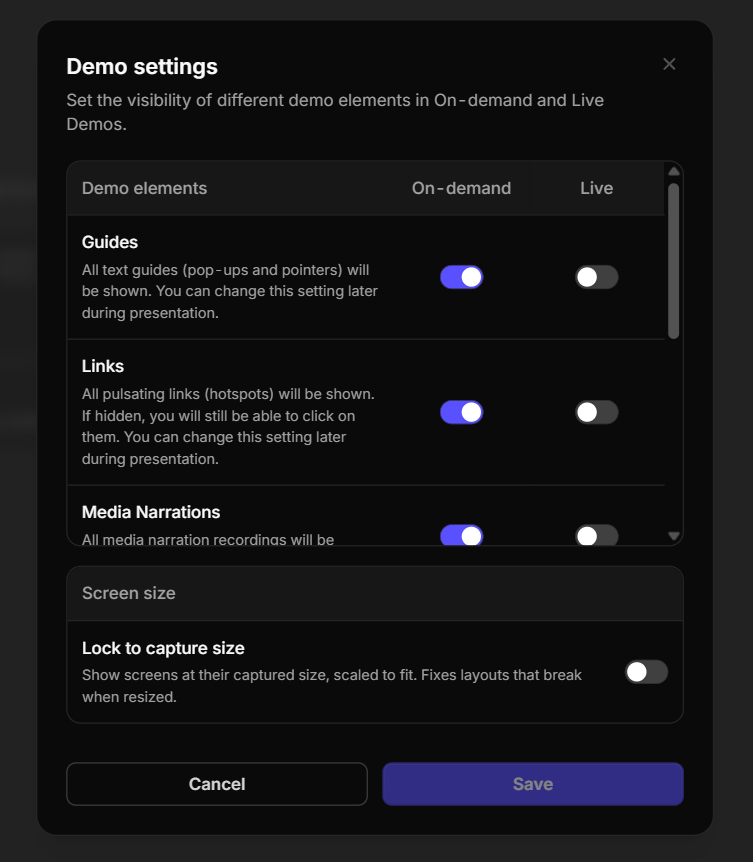
In the Demo settings window, scroll down to the Screen size section.
Find the Lock to capture size option and enable the toggle.
When enabled, this setting displays your demo screens at their original captured dimensions, scaling them proportionally to fit the viewer's screen. This helps prevent layout issues caused by resizing.
Step 3: Set the Original Capture Resolution
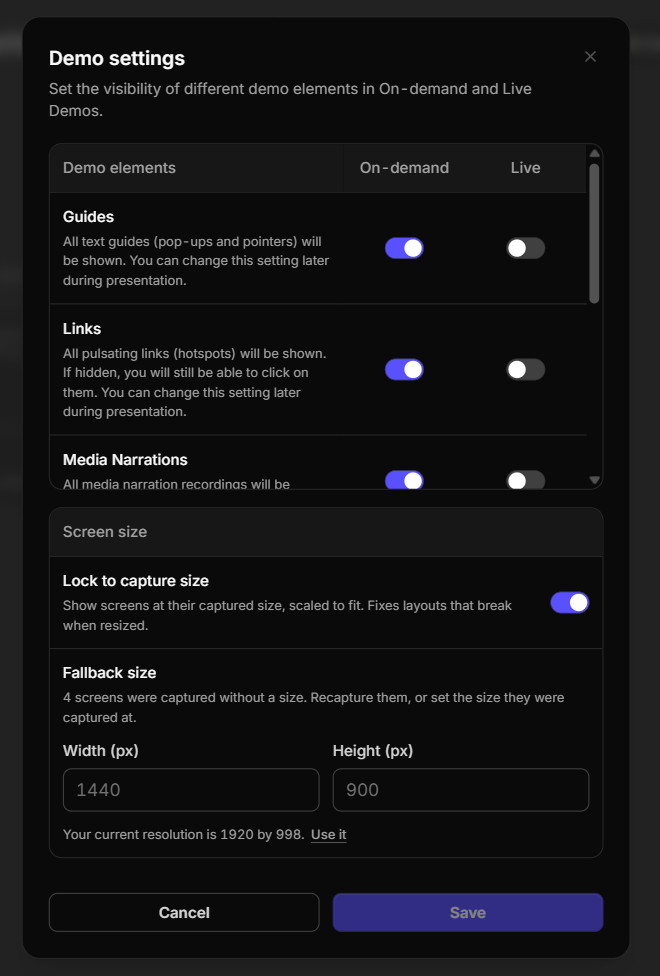
Once you've enabled Lock to capture size, you'll see the Fallback size settings, where you can specify the original screen resolution.
There are two ways to configure it:
Option 1: Use the Automatically Detected Resolution
If you've recently captured your demo and are using the same device it was captured on, Demoboost can automatically detect your current screen resolution.
- Find the suggested resolution displayed below the Width and Height fields.
- Click Use it to automatically populate the fields with the detected resolution.
You can also enter the width and height manually if needed.
Option 2: Enter the Resolution Manually
If you're working with an older demo or configuring the settings on a different device, you'll need to enter the original capture resolution manually.
- Find the Width (px) and Height (px) fields.
- Enter the resolution of the screen on which the demo was originally captured (usually found in the device’s display settings).
Important: Make sure you enter the original capture resolution, not the resolution of the device you're currently using. This ensures that your demo screens scale correctly.
Step 4: Save Your Settings
Once you've enabled Lock to capture size and confirmed the correct resolution, click Save.
That's it! Your demo screens will now scale proportionally while preserving their original layout, giving your viewers a consistent experience across different screen sizes.