How can we help?

Thank you! Your submission has been received!
Oops! Something went wrong while submitting the form.
How to Get Started with the Demoboost API
How to Adjust Screen Scaling in Your Demo
How to Export Your Demo as a Video, PDF, or GIF
How to Use AI Translate
How to Use Demo Archive
Offline Demo Sharing
How to Set Up Global Webhooks in Demoboost?
How to Add Organization Tags
Situation Slide
How to Build a Dynamic Playlist
What can I manage as an Organization Admin?
How to Integrate Demoboost Lead Forms with Webhooks via Zapier?
How to Build and Customize Your Lead Form
How to Share and Embed Demos from a Specific Screen
Great Demo add-on
How to Create and Use Folders
How to Use Demoboost AI assistant for screen editing
How to Editing Screen Elements
Branding - Custom Themes
How to Add Tour Navigation to your Demo
How to Add Video Screens
How to Add Image Screens
How to Add Voiceover
How to Add Floating Button
How to Use AI refine in your guides
Comprehensive Technical Troubleshooting Guide (Before Contacting Support)
Unable to Capture Locally Hosted Pages
Internal Linking vs. External Linking
Shared Link Not Opening ("You Don't Have Access..." Error)
Images Captured with Incorrect Size or Aspect Ratio
Demoboost Application Not Loading
Captured HTML Elements Are Missing or Broken
Unable to Save Screens in the Editor
Why Can't I Select or Edit a Disabled Element in the Editor?
Why Can't I Add an Image or Video Screen to an Empty Demo?
Unable to Log In to Demoboost
Why Do I Need to Refresh My Page After Installing the Extension?
Variables
How to Add AI Narration to your Demos
Autoplay
Sales Room
Demo playlist
Ending/CTA screen
Pick Your Own Journey Screen
Performing key operations on screen
Integrating Marketo with Demoboost: A Step by Step Guide
Integrating 6sense with Demoboost: A Step by Step Guide
How to Build a Sandbox Demo Using Sandbox Capture Mode or Global Linking
“Great Demo!” Training for Sales Teams
Sample Article
How to Replace images
How to Assign a Variable
How to Select or Create an Overlay
How to download the extension?
How to present Mailchimp to Tim Cook
How to Clear Your Browser Cache
How to Install Microsoft Clarity on Your Demos Using Google Tag Manager
How to Translate Screens
Troubleshooting Saving Errors
How to Capture Local Web Pages
Advanced Guide Cutomisation
How to Edit Elements Behind Overlays
How to Export Data from Demoboost
Analytics Overview
Playback Settings
Live Demo Settings
Demo Email Notifications
How to Share Demos
How to Embed Demos on Your Website
How to Share With Presenters and Channel Partners
How to Duplicate Demos
Inspector Introduction
Creating Mobile App Demos
How to Add Speaker Notes
How to Add Video Narration
How to Add and Manage Guides in Your Demo
How to Link Screens
How to Capture Screens
How to Create Demos
How to Add Extension
Product updates
If this editor looks unfamiliar, you're likely using the previous version.
Access the right documentation by clicking on the button.

How to Get Started with the Demoboost API

The Demoboost Public API allows you to connect Demoboost with other tools and access your organization's data programmatically.

With the API, you can retrieve organization information and user data to build integrations and automate workflows.

In this guide, we'll show you how to generate an API key, authenticate your requests, and start using the Demoboost API.

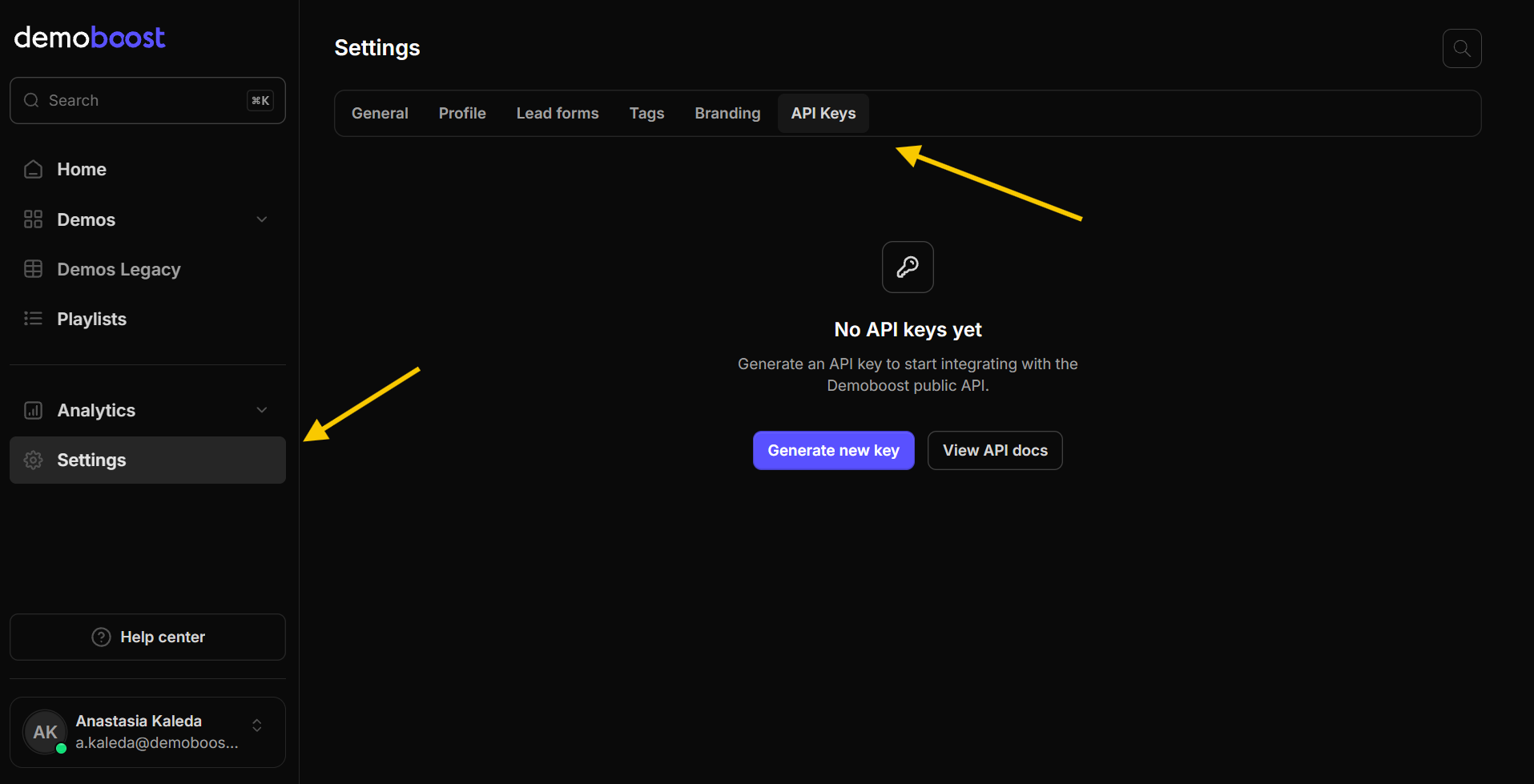
Step 1: Navigate to API Settings

  1. Select Settings from the left-hand navigation menu.
  2. Open the API Keys tab.
  3. Click Generate new key.

This will open a window where you can configure your new API key.
Step 2: Generate Your API Key

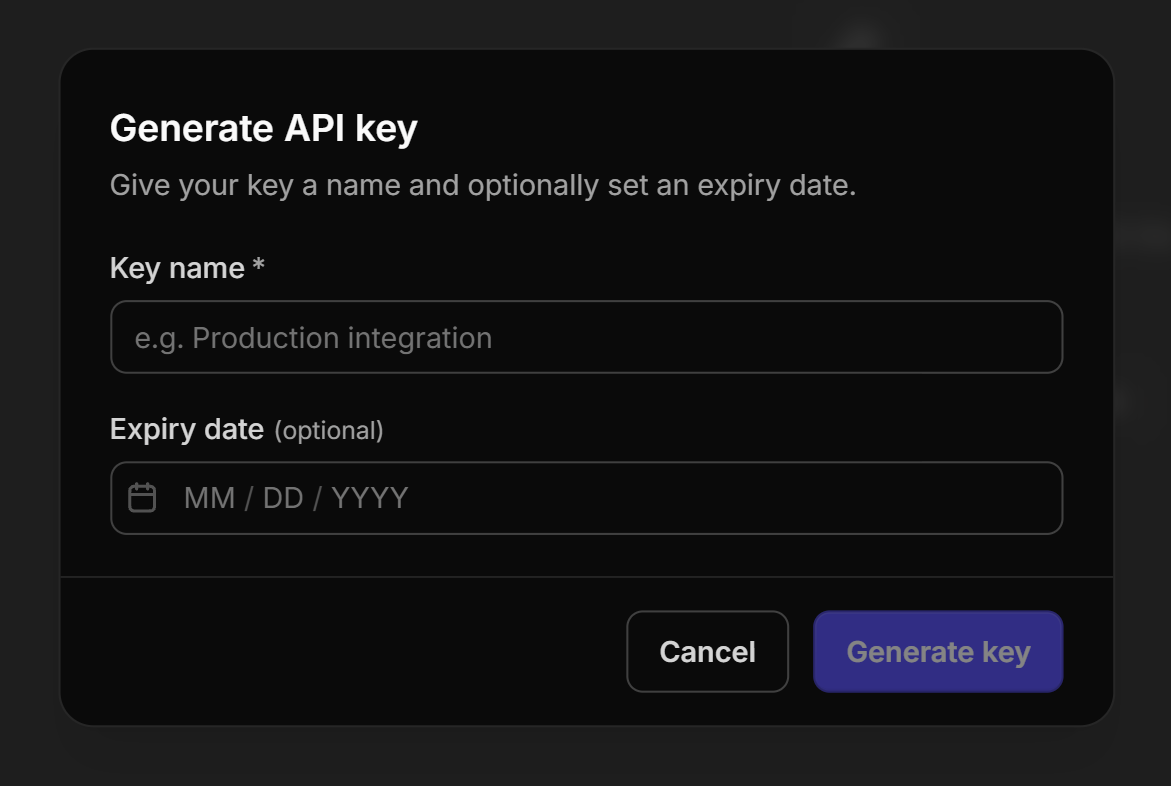
In the Generate API key window, configure the following:

  1. Key name: Give your API key a descriptive name to help you identify its purpose, such as "Production integration" or "Internal reporting".
  2. Expiry date (optional): Set a date after which the API key will automatically expire. Leave this field empty if you don't want to set an expiration date.

Once you've entered the details, click Generate key.

Your new API key will be created and displayed.

Important: Your full API key is shown only once. Copy it immediately and store it securely. If you lose it, you'll need to revoke the existing key and generate a new one.
Step 3: Authenticate Your API Requests

Now that you've generated an API key, you're ready to connect to the Demoboost Public API.

All authenticated API requests require your API key to be included in the X-Api-Key header.

The API uses the following base URL:

https://open.demoboost.com

For example, to retrieve a list of users in your organization, you can make the following request:

curl https://open.demoboost.com/v1/users \

-H "X-Api-Key: YOUR_API_KEY"

Replace YOUR_API_KEY with the key you generated in Step 3.

If your request is successful, the API will return the requested user data.

For a complete explanation of authentication methods, visit the Demoboost Authentication Guide.

Step 4: Managing Your API Keys

To manage your API credentials, return to Settings → API Keys.

For security, we recommend creating separate API keys for different integrations, setting expiration dates where appropriate, and revoking any keys that are no longer needed.

Important: Keep your API keys private and never include them in publicly accessible code or repositories.

For more technical details, including available endpoints, authentication methods, rate limits, and code examples, visit the Demoboost Public API Documentation.