If this editor looks unfamiliar, you're likely using the previous version.
Access the right documentation by clicking on the button.
AI Translate lets you turn one demo into a multilingual experience without rebuilding it for every market. Translate your guides, localize video narration, and let viewers switch between languages directly in Playback — all within the same demo.
Step 1:
Open the settings inside the demo editor to start creating a multilingual experience.
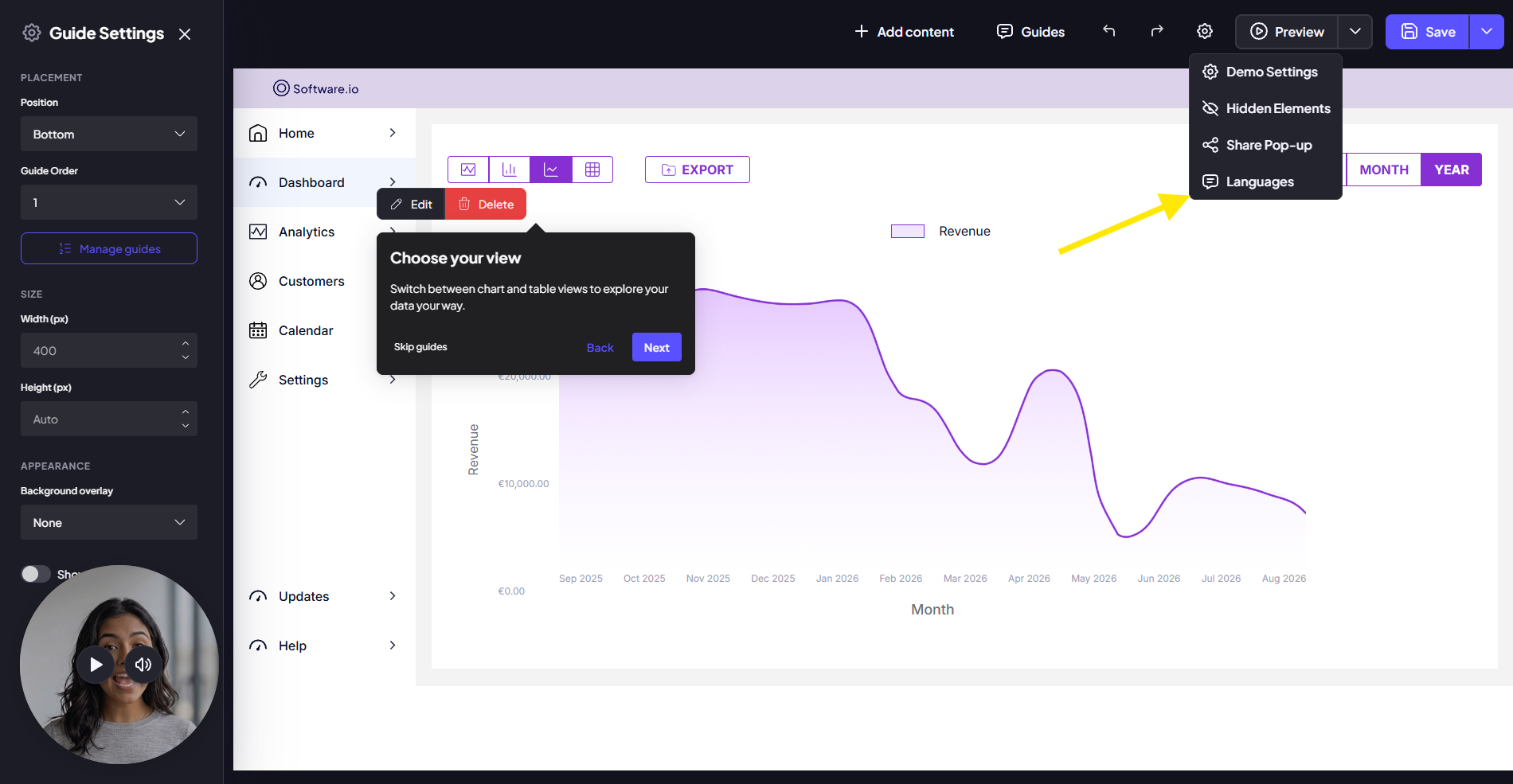
Step 2:
Select the languages you want to make available in your demo
You can add multiple languages and choose which one should be shown by default. Viewers can then switch between all available languages directly in Playback.
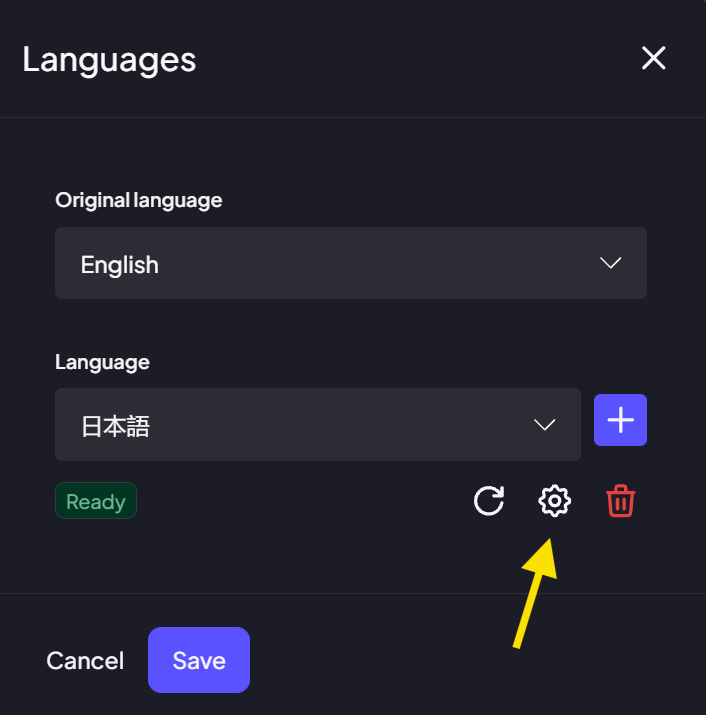
Step 3:
Have product or company names, other terms that shouldn’t be translated, or words that require a specific translation?
Click the Settings button and add them to the Do not translate list, or create a custom glossary for each language separately to have greater control over the result.
AI will then keep these terms consistent across the entire demo.
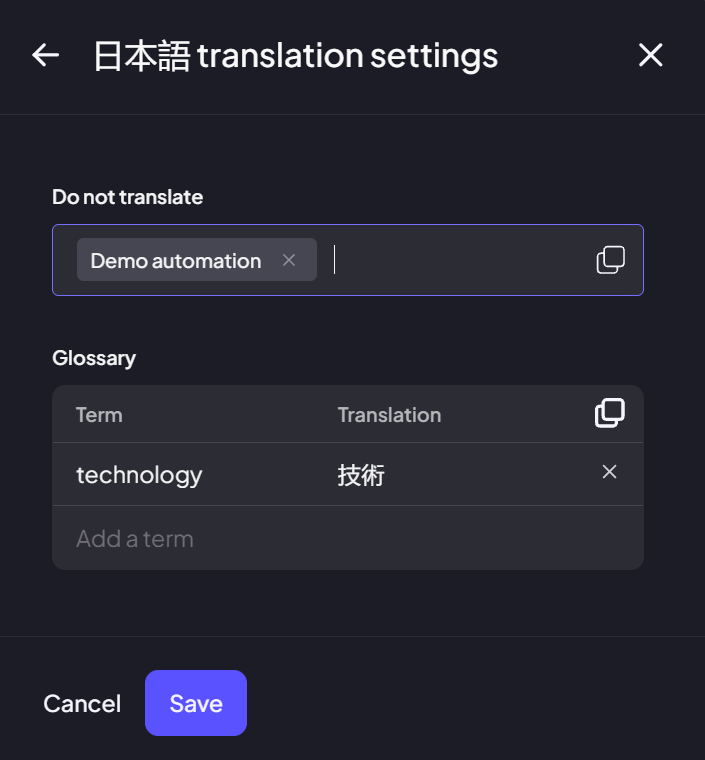
Step 4:
Once you’ve selected your languages, AI Translate automatically translates your guides into the languages you’ve added.
There’s no need to create or translate each guide manually — your localized guides are ready to use within the same demo.
Step 5:
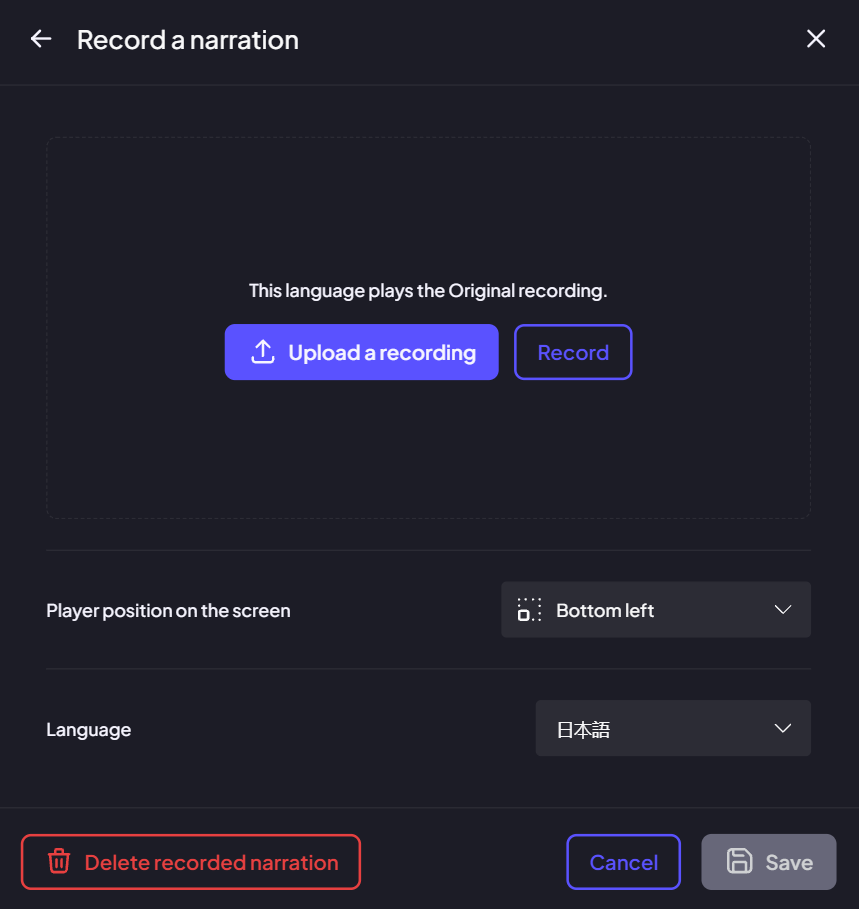
You can also create localized versions of your video narration.
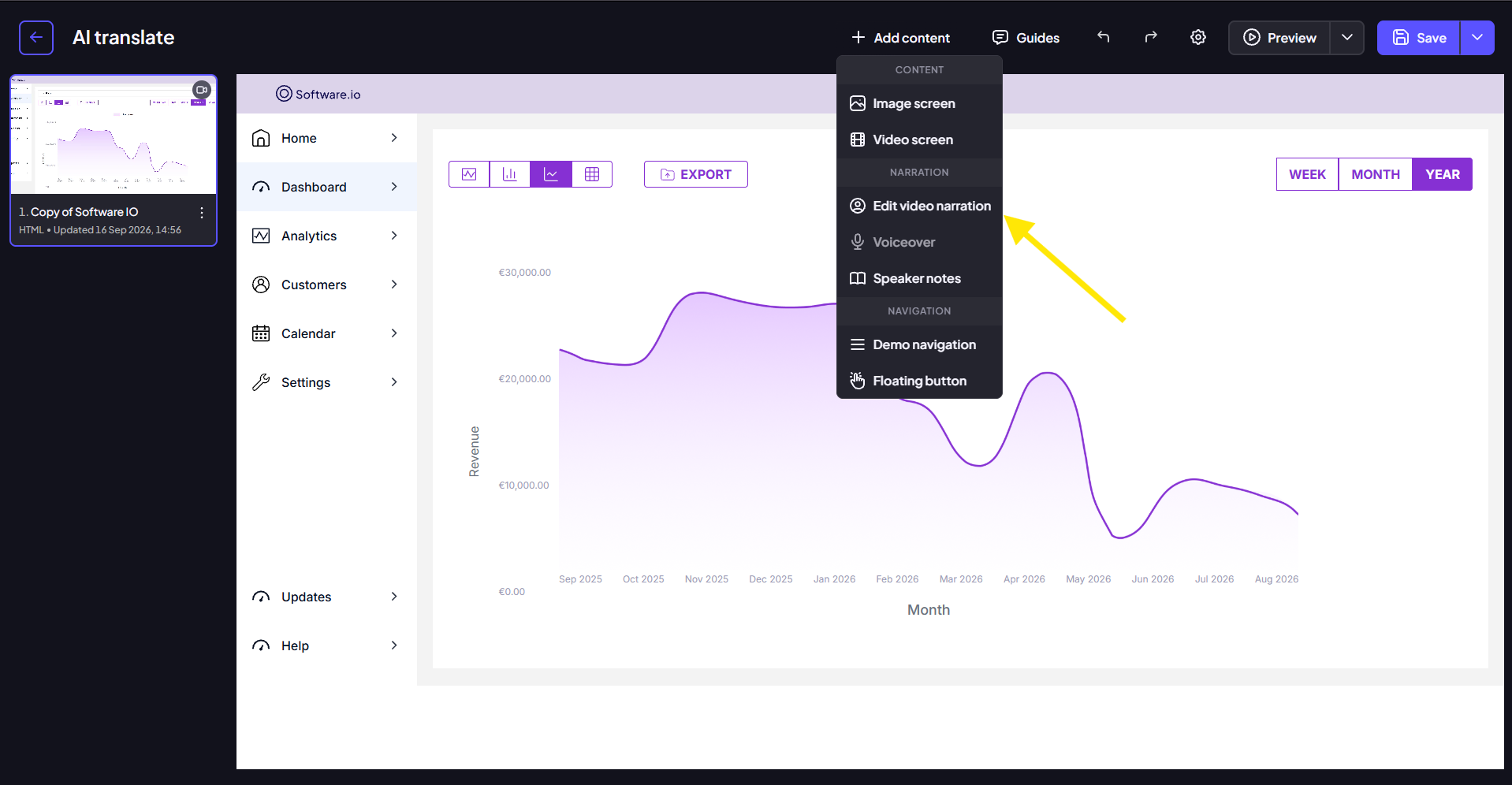
In the video narration settings, select the language you want to add and upload the corresponding recording. Then click Save.
Your original narration stays in place, while each localized recording is connected to its corresponding language.
Step 6:
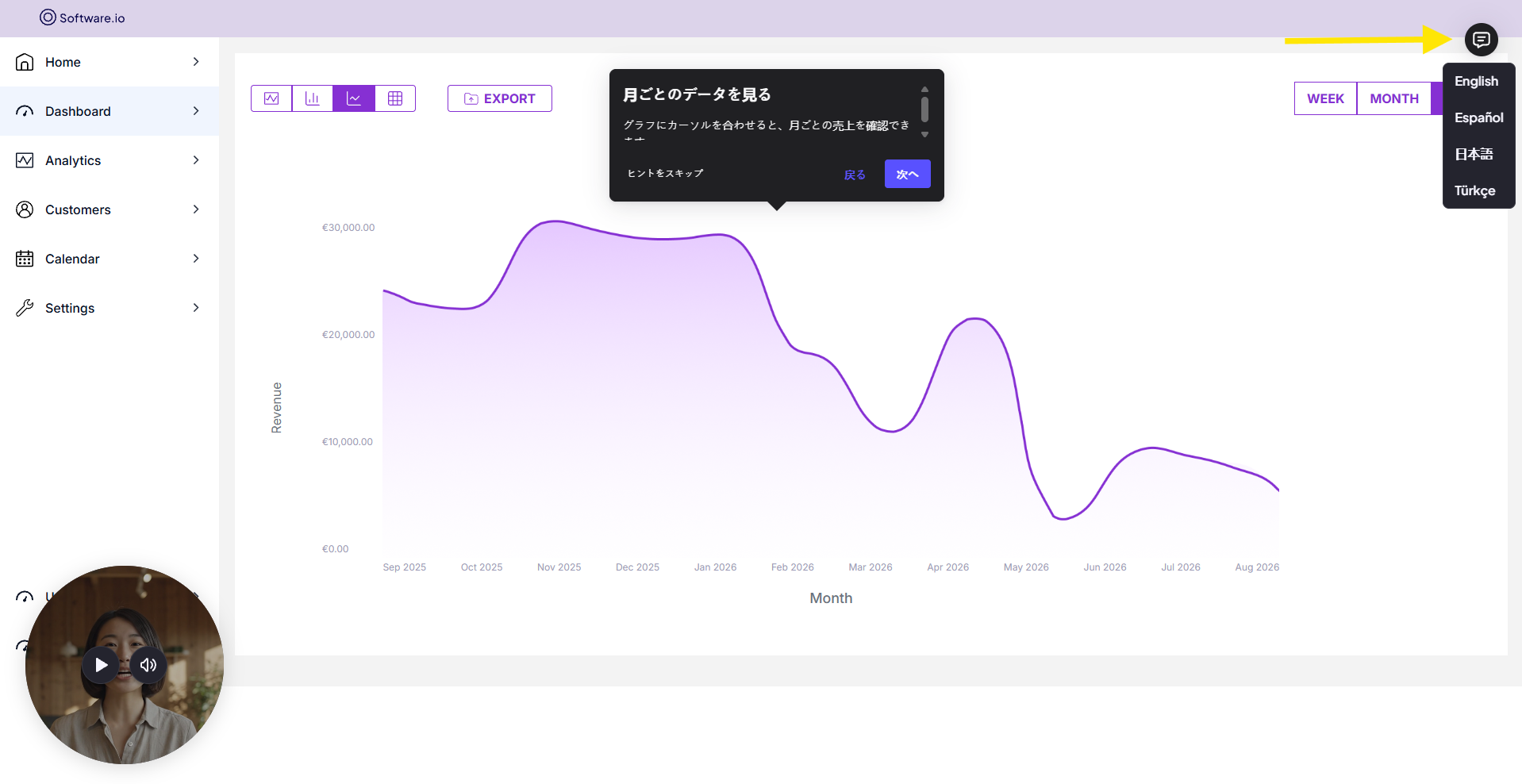
Your demo is now available in multiple languages, with both translated guides and localized narration.
Open the demo in Playback and use the language selector to switch between the available versions. The guides and video narration will update based on the selected language.
One demo. Multiple languages. Zero rebuilding.