How can we help?

Thank you! Your submission has been received!
Oops! Something went wrong while submitting the form.
How to View and Export Demo Sessions in Demoboost
How to Use Lead and Account Analytics in Demoboost
How to Use Asset Analytics in Demoboost
How to Get Started with the Demoboost API
How to Adjust Screen Scaling in Your Demo
How to Export Your Demo as a Video, PDF, or GIF
How to Use AI Translate
How to Use Demo Archive
Offline Demo Sharing
How to Set Up Global Webhooks in Demoboost?
How to Add Organization Tags
Situation Slide
How to Build a Dynamic Playlist
What can I manage as an Organization Admin?
How to Integrate Demoboost Lead Forms with Webhooks via Zapier?
How to Build and Customize Your Lead Form
How to Share and Embed Demos from a Specific Screen
Great Demo add-on
How to Create and Use Folders
How to Use Demoboost AI assistant for screen editing
How to Editing Screen Elements
How to Create and Apply Custom Theme in Demoboost
How to Add Tour Navigation to your Demo
How to Add Video Screens
How to Add Image Screens
How to Add Voiceover
How to Add Floating Button
How to Use AI refine in your guides
Comprehensive Technical Troubleshooting Guide (Before Contacting Support)
Unable to Capture Locally Hosted Pages
Internal Linking vs. External Linking
Shared Link Not Opening ("You Don't Have Access..." Error)
Images Captured with Incorrect Size or Aspect Ratio
Demoboost Application Not Loading
Captured HTML Elements Are Missing or Broken
Unable to Save Screens in the Editor
Why Can't I Select or Edit a Disabled Element in the Editor?
Why Can't I Add an Image or Video Screen to an Empty Demo?
Unable to Log In to Demoboost
Why Do I Need to Refresh My Page After Installing the Extension?
Variables
How to Add AI Narration to your Demos
Autoplay
Sales Room
Demo playlist
Ending/CTA screen
Pick Your Own Journey Screen
Performing key operations on screen
Integrating Marketo with Demoboost: A Step by Step Guide
Integrating 6sense with Demoboost: A Step by Step Guide
How to Build a Sandbox Demo Using Sandbox Capture Mode or Global Linking
“Great Demo!” Training for Sales Teams
Sample Article
How to Replace images
How to Assign a Variable
How to Select or Create an Overlay
How to download the extension?
How to present Mailchimp to Tim Cook
How to Clear Your Browser Cache
How to Install Microsoft Clarity on Your Demos Using Google Tag Manager
How to Translate Screens
Troubleshooting Saving Errors
How to Capture Local Web Pages
Advanced Guide Cutomisation
How to Edit Elements Behind Overlays
How to Export Data from Demoboost
Analytics Overview
Playback Settings
Live Demo Settings
Demo Email Notifications
How to Share Demos
How to Embed Demos on Your Website
How to Share With Presenters and Channel Partners
How to Duplicate Demos
Inspector Introduction
Creating Mobile App Demos
How to Add Speaker Notes
How to Add Video Narration
How to Add and Manage Guides in Your Demo
How to Link Screens
How to Capture Screens
How to Create Demos
How to Add Extension
Product updates
If this editor looks unfamiliar, you're likely using the previous version.
Access the right documentation by clicking on the button.

How to View and Export Demo Sessions in Demoboost

Demoboost's Sessions Analytics gives you a complete overview of individual viewing sessions across all demos in your organization.

In this article, you'll learn how to access session-level data, review viewing activity, and export session data to CSV for further analysis and reporting.

Step 1: Access Sessions Analytics

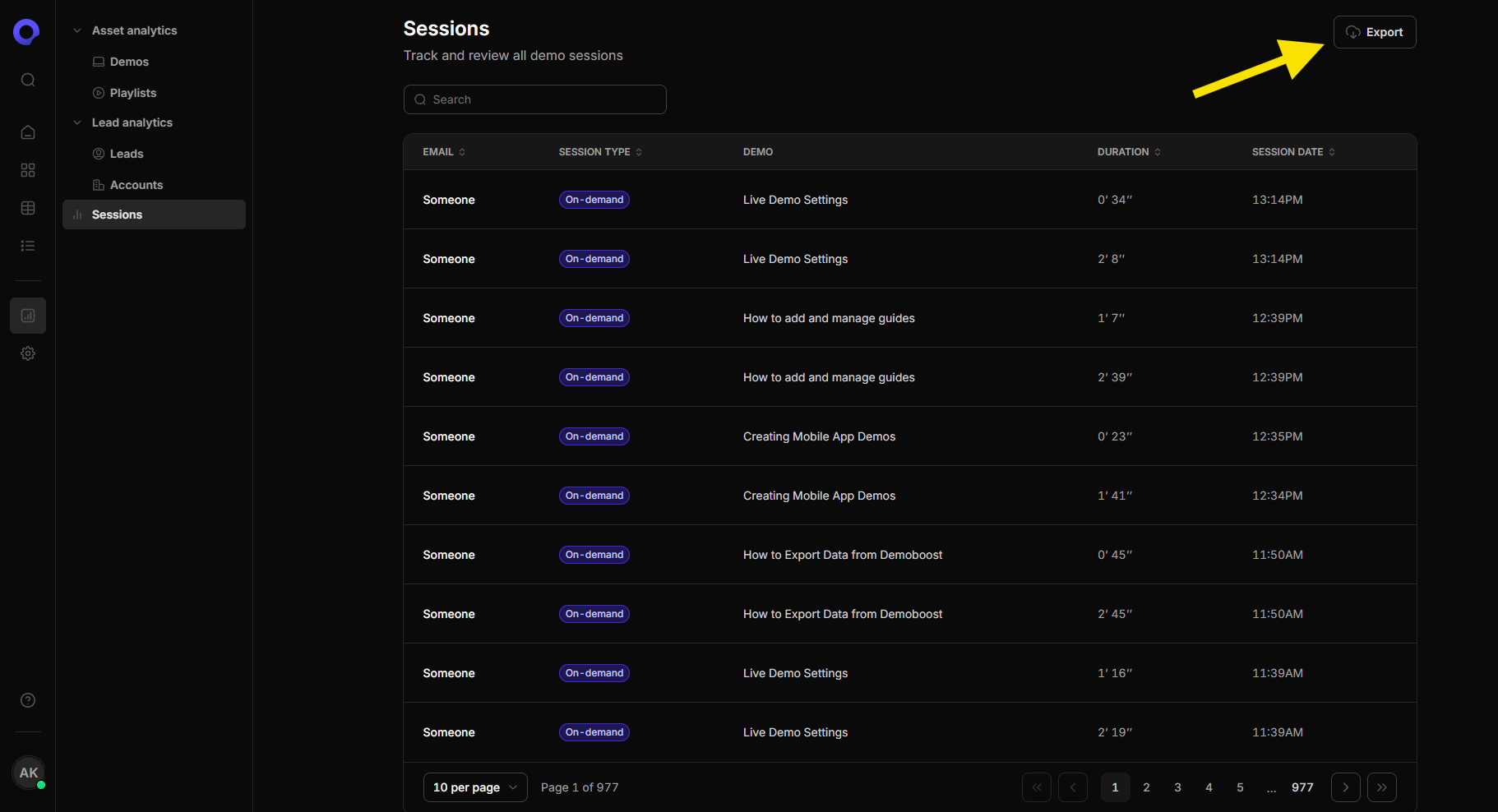
Navigate to Analytics in the main left-hand menu and select Sessions at the bottom of the list.

Here, you'll find a complete list of individual viewing sessions across all demos in your organization, including anonymous and identified visitors.

For each session, you can review:

  1. Email: The viewer's email address, if identified.
  2. Session Type: Whether the session was on-demand or live.
  3. Demo: The demo accessed during the session.
  4. Duration: How long the viewing session lasted.
  5. Session Date: When the session took place.

Use the Search field to find specific sessions or sort the available columns to explore viewing activity.
Step 2: Export Session Data

Click Export in the top-right corner of the Sessions page to export session-level data across all demos in your organization.

Once the export is initiated, a confirmation pop-up will appear, and the CSV file will be sent to the email address associated with your Demoboost account.

Step 3: Download Your Session Data

Open the email from Demoboost and click Download to retrieve your exported CSV file.
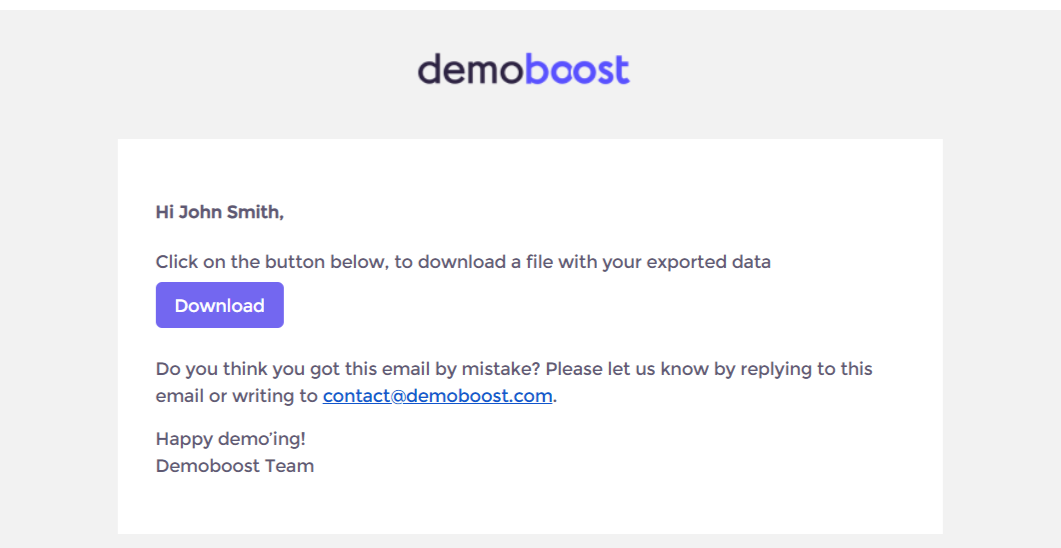
You can import this data into Google Sheets, Excel, or BI tools to perform further analysis, create custom reports, and visualize demo activity.