If this editor looks unfamiliar, you're likely using the previous version.
Access the right documentation by clicking on the button.
Demoboost's AI Avatars let you create professional video narrations for your interactive demos without recording videos yourself.
In this article, you'll learn how to generate AI-powered video narration, customize your avatar, and add it to your demo to deliver a more engaging, guided experience for viewers.
Step 1: Add Video Narration to Your Demo
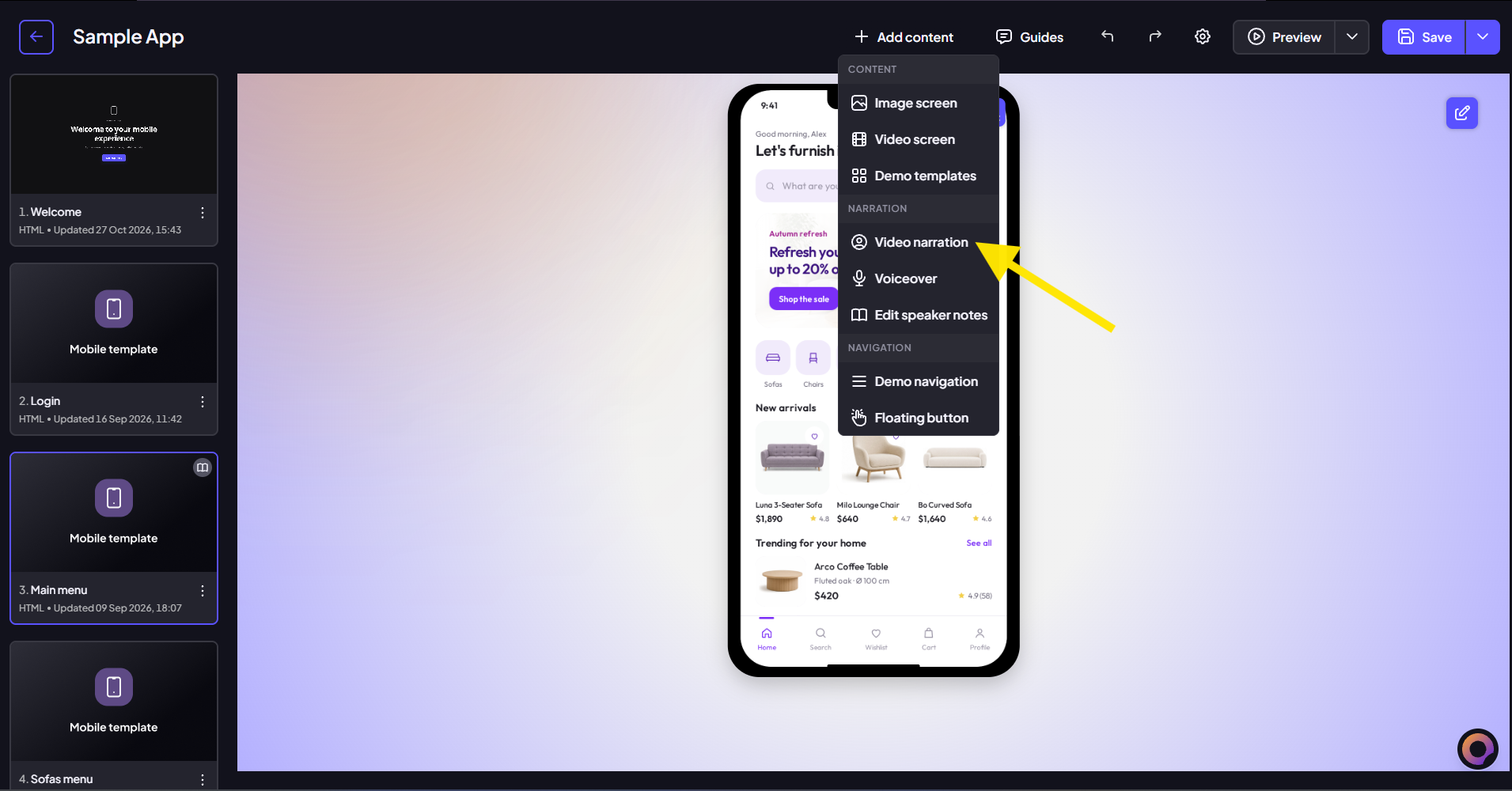
Open your demo in the Editor and click Add Content.
From the dropdown menu, select Video Narration to start adding a video presenter to your demo.
Step 2: Generate Video Narration with AI
Click Generate with AI to create video narration using an AI avatar.
You can customize your narration by:
- Script: Paste the text you want your AI avatar to present.
- Avatar: Choose an AI presenter for your video.
- Voice: Select your preferred voice.
- Background: Customize the video background to match your brand and demo experience.
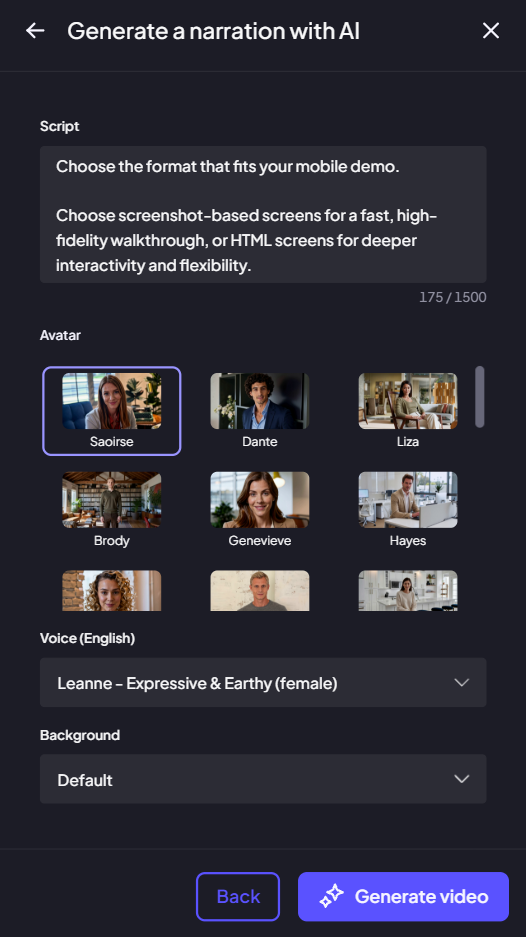
Once you're happy with your selections, click Generate Video.
Step 3: Preview and Save Your AI Video Narration
Once your video is ready, preview the result and choose where it should appear on your demo screen.
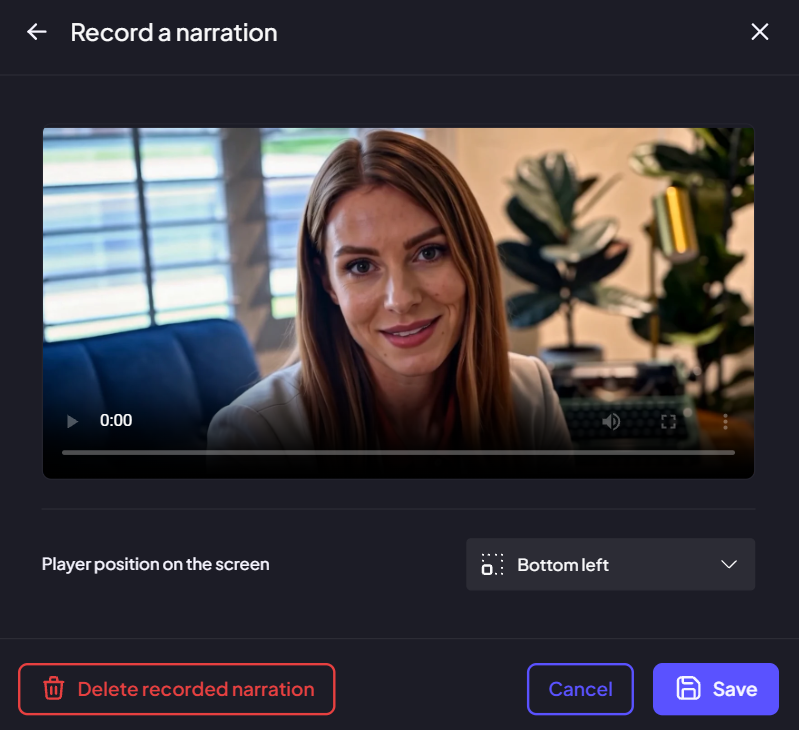
Happy with the result? Click Save to add the narration to your demo.
Note: Video narration is added to individual screens, so you can use different messages throughout your demo or include narration only on selected screens.
Step 4: Edit Your Video Narration
Want to make adjustments? Click the gear icon on your video narration to reopen its settings.
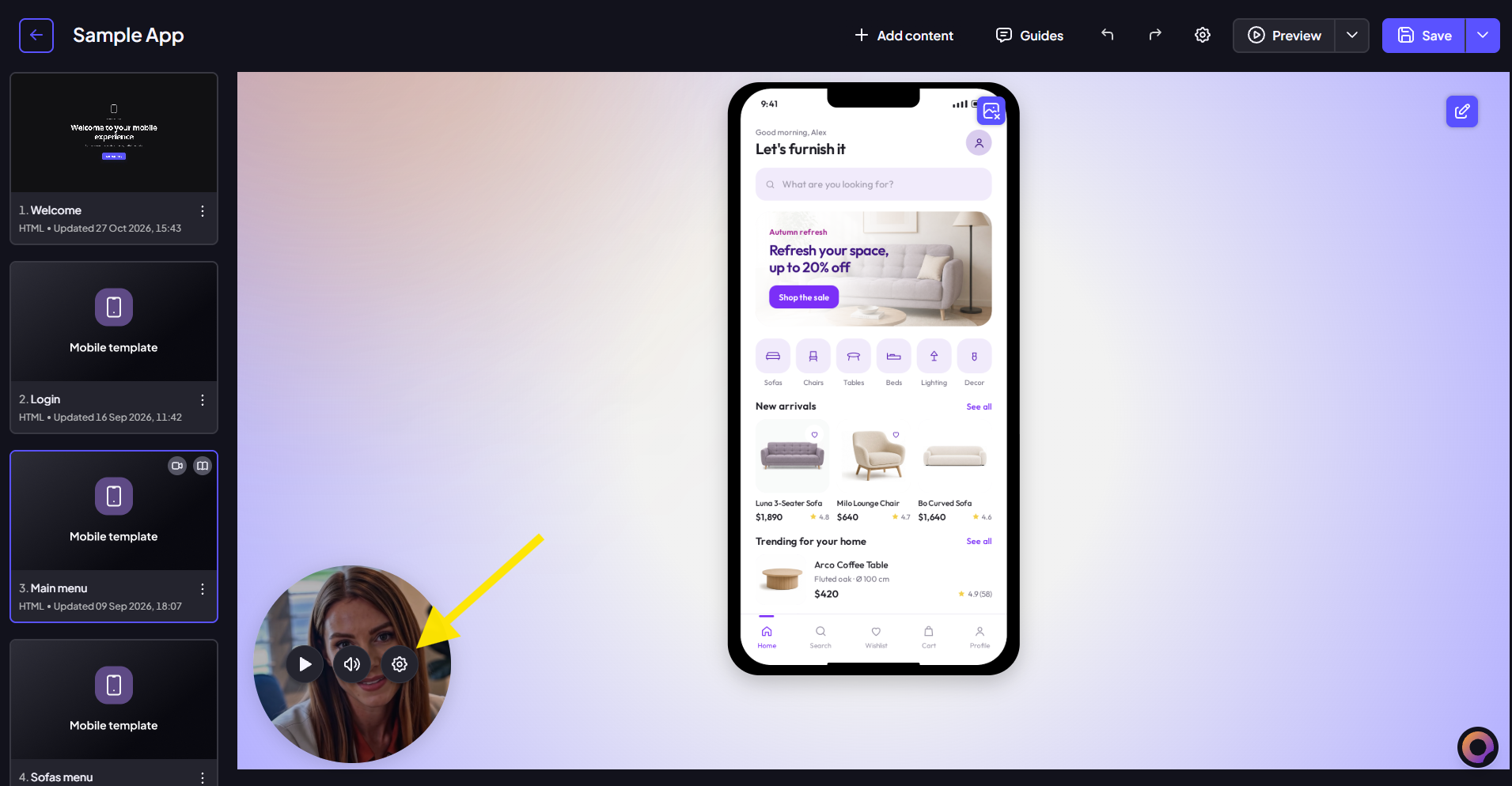
Here, you can revisit your video configuration and make changes as needed.
And that’s it, you've successfully added AI-powered video narration to your demo!